¶ Maintenance mode - report bugs right from the store
Maintenance mode in Hummerce lets a store admin report a visual bug directly from the store page - by marking the area of the screen where something isn't working correctly. The report reaches the support team together with the browser and its version, screen resolution, and the exact address where the problem occurred, so support can find the cause faster.
As of Hummerce 2.26 and later, updated 2026-09-28.
¶ Benefits and use cases
- Report a bug without describing it from scratch - just mark the spot on the screen instead of taking a screenshot yourself and writing up the details.
- Faster diagnosis on the support side - the report automatically includes the browser and its version, screen resolution, and the exact URL of the bug.
- Less work for the person reporting - the whole path (marking, description, sending) takes a few clicks.
¶ What it looks like
Screenshots from the Hummerce demo store.
¶ Access from the store front end
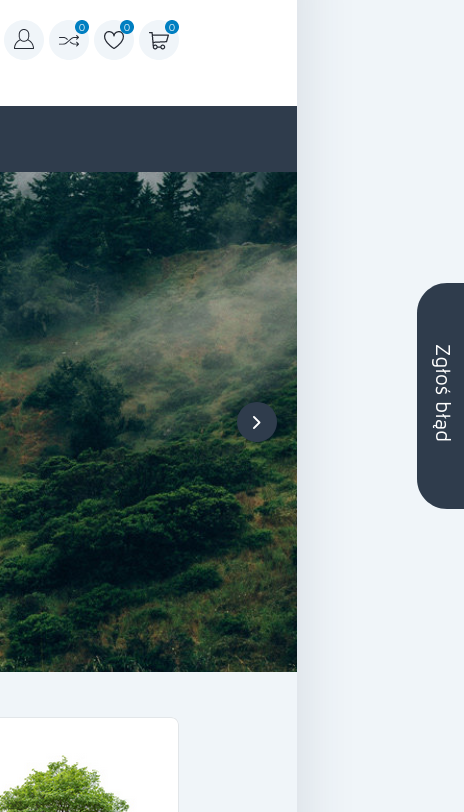
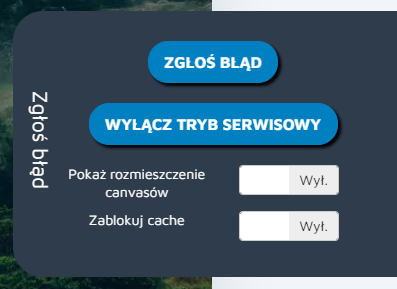
¶ Maintenance mode menu
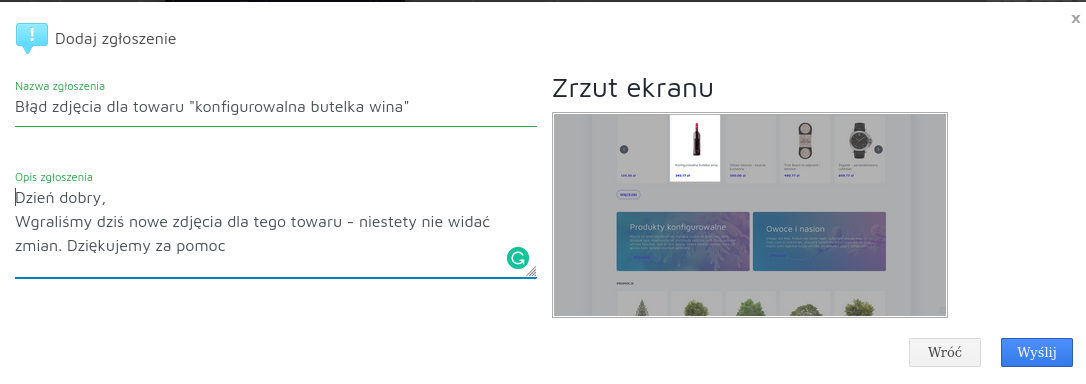
¶ Filling in the report
¶ How it works
¶ Activation
- The admin activates maintenance mode with an icon in the top right corner of the admin panel (available since version 2.26).
- After activation, they are taken to the store front end, where a Report bug tab appears on the right side - it expands on hover.
¶ Maintenance mode options
- Report bug - lets you mark a screen area with the bug and proceed to the report.
- Turn off maintenance mode - return to normal store browsing, without maintenance mode.
- Show canvas layout - shows or hides the Canvases and content placed on the page.
- Lock cache - disables the page content fragment (JSP) cache for the operator, so they see the current page content without affecting performance for store customers.
¶ Reporting a bug
- After choosing Report bug, you can mark a section of the page, which is included as an image in the report - without marking an area, the whole page view is sent.
- The report automatically includes the browser and its version, screen resolution, and the exact URL where the bug occurred.
- After sending, the report reaches the support team handling the store, and the reporter can later check its status.
¶ Dependencies
- Requires admin permissions and a previously configured connection of the admin account to the Hummerce support team's reporting system.
¶ Implementation
Maintenance mode has been part of the Hummerce standard since version 2.26 and requires no implementation. Connecting the admin account to the reporting system is configured by the support team when the store launches.
¶ Limitations
- On the test environment, activating maintenance mode may redirect outside the store - in that case you first need to access the test store front end with the provided access password, as with any visit to the test store.
- The maintenance mode icon only works for an admin account with a connected access to the reporting system - without that, it stays unavailable.
- We do not review the configuration for legal compliance.
¶ Frequently asked questions
Does reporting a bug in maintenance mode require manually describing the browser and screen resolution?
No. Maintenance mode attaches that data automatically along with the URL where the bug occurred.
Does maintenance mode work immediately for every store admin?
No. It requires the admin account to have a previously configured connection to the support team's reporting system.
Does locking cache in maintenance mode affect store customers?
No. It only affects the operator's session who activated maintenance mode - customers don't notice any performance change.
Since which Hummerce version is maintenance mode available?
Since version 2.26.
Can you report a bug by marking only part of the page?
Yes. Without marking an area, the whole page view is sent with the report.
¶ Related
- Canvases and content - what the canvases shown in maintenance mode are.
- Cache - locking cache for the operator.
Want to see how technical support works for your Hummerce store? Contact the Hummerce team (in Polish).
¶ Configuration details
¶ Access in the admin panel
- Maintenance mode icon - top right corner of the admin panel, visible once the admin account's access to the reporting system is connected.
- Report bug tab - store front end, right edge of the page, visible once maintenance mode is activated.