¶ Canvases and contents - homepage content without a developer
Canvases and contents in Hummerce is the mechanism store staff use to manage the content shown on the homepage, in the header and in the footer of the store - without a developer. A canvas is a place on the page defined in the template, and a content is the specific piece of content displayed inside it: text, an image, a banner, or a reference to an item, category or static page.
Last updated: 2026-09-28.
¶ Benefits and use cases
- Changing homepage content on your own - no need to ask a developer, straight from the panel.
- Many content types - plain text, HTML content (with styling and links), an image, and also a reference to a specific item, category, static page, or query (e.g. a list of recommended products).
- Limiting how many contents are shown in a canvas and a random display order - useful, for example, for rotating banners.
- Showing content only for a chosen period - e.g. holiday greetings visible only December 24-26, automatically hidden afterwards.
- A live preview of canvas placement - the preview shows where on the homepage each canvas is located, before you add content to it.
¶ What it looks like
Screenshots from the Hummerce panel.
¶ Editing a canvas
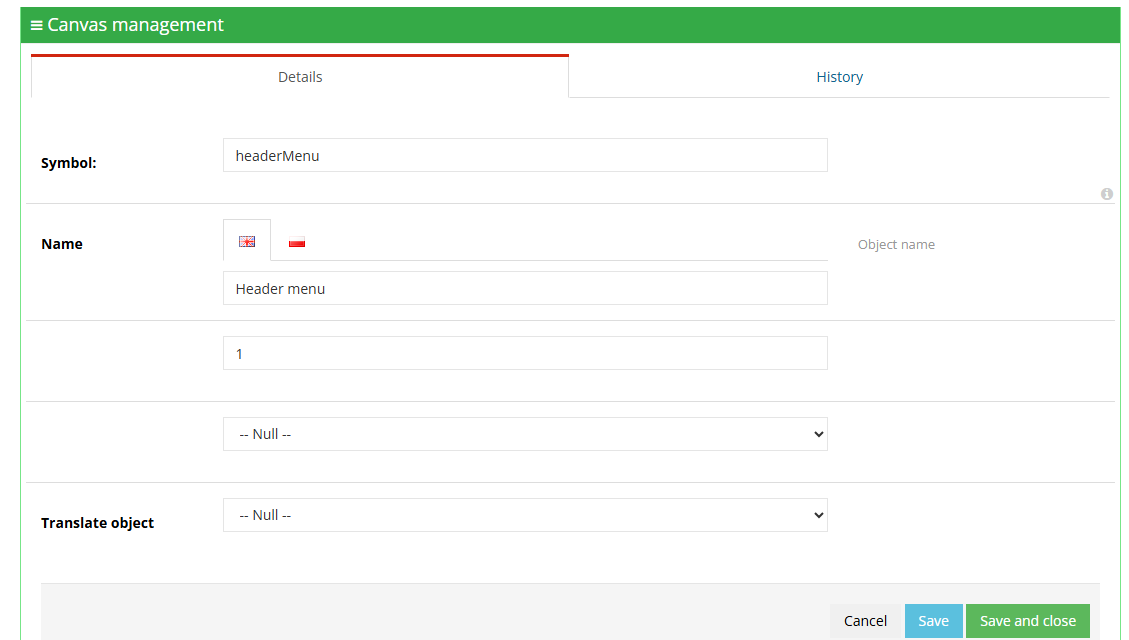
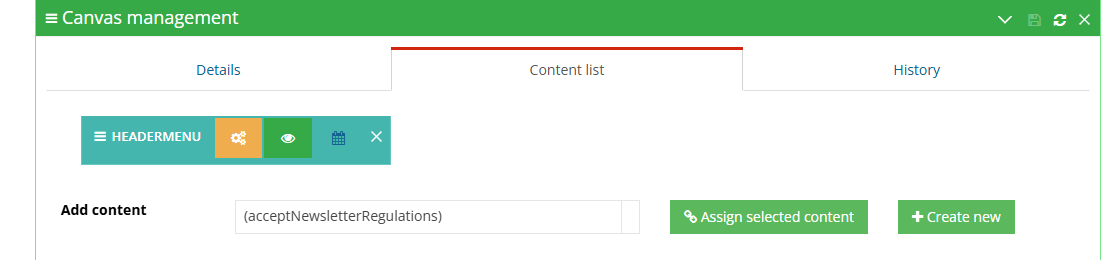
¶ List of contents assigned to a canvas
¶ How it works
¶ Canvases
- The homepage and other store pages are split into canvases defined in the template code.
- The list of canvases is available in the panel under Content -> Canvases. For each canvas you can see the assigned contents, their order, symbol and visibility setting.
- A preview of canvas placement on the homepage shows their symbols and position instead of the actual content - useful when planning new content.
- Editing a canvas lets you change its symbol, name (in each store language), the limit on how many contents are shown (0 = no limit), and turn on random display order.
¶ Contents
- A content is the piece of content displayed inside a canvas. Content types:
- static - Text (plain text), HTML (with styling, links and other HTML capabilities), Image (a graphic file),
- dynamic - Item (a product from the catalog), Category, Page (a static page, e.g. terms of service), Query, and a static-page menu (navigation).
- New content is created either from within canvas editing or under Content -> Contents. A content created separately still needs to be assigned to the canvas it should appear in.
- Every content has a symbol (a unique identifier), a name to help find it, and a visibility setting in the store.
- Each content assigned to a canvas can have a display date range - outside that range, the content is automatically hidden.
¶ Limitations
- A new canvas has to be added in the template code - the panel only manages canvases that already exist.
- The canvas placement preview is visible to everyone currently logged into the store, not just the person who turned it on.
- Image-type content isn't supported by modern browsers - we don't recommend using it for new content.
- We do not verify canvas and content configuration for legal compliance - advertising, terms-of-service and informational content is prepared and approved by the store.
¶ Frequently asked questions
Can store staff change homepage content on their own?
Yes. Adding, editing and removing content in existing canvases is done in the panel, without a developer.
Can content display be limited to specific dates, e.g. for holidays?
Yes. Any content assigned to a canvas can have a display date range set - outside it, the content is automatically hidden.
Can a completely new canvas be added to a page without a developer?
No. A new canvas first has to be added in the template code - the panel manages canvases that already exist.
Can a single content show an item or a category, not just text or an image?
Yes. Dynamic content can reference an item, a category, a static page, a query, or a static-page menu.
¶ Related
- Banners - a separate mechanism for managing promotional banners in the store.
- Static pages - another type of content managed independently in the panel.
Want to see how content management could work in your store? Contact the Hummerce team (in Polish).
¶ Configuration details
¶ Access in the admin panel
- Canvas list and editing: Content -> Canvases. The Details tab (symbol, name in each language, content limit, random order) and the Content list tab (assigned contents, editing, visibility, display date range, adding new content).
- Canvas placement preview: the Show canvas placement on the page button on the canvas list - takes you to the store homepage with canvases marked instead of content. The Show page without information button restores the standard view.
- Creating and editing content independently of a canvas: Content -> Contents. Fields: symbol, display in store (yes/no), name, content type (static/dynamic) and its kind.