¶ Configuration - general settings in the Hummerce panel
Configuration - general settings is a screen in the Hummerce panel where the store admin finds and changes how the store operates - from general data, through emails and finance, to customer and order settings. Search and a split into readable tabs let you get to the right setting quickly, without scanning long lists.
As of Hummerce 2.28, updated 2026-09-28.
¶ Benefits and use cases
- One place for all store settings - every tab (General data, Emails, Finance, Customers, Orders and others) is available right away, without switching between views.
- Fast lookup of a setting - the search suggests any searched keyword together with the tab it belongs to.
- Safe editing - a changed value does not take effect immediately: the admin sees a list of pending changes to confirm before they start working in the store.
- Control over when a change takes effect - you can choose to save the change for later ("Save") or apply it immediately ("Save and apply").
¶ What it looks like
Screenshots from the Hummerce demo store.
¶ Settings screen
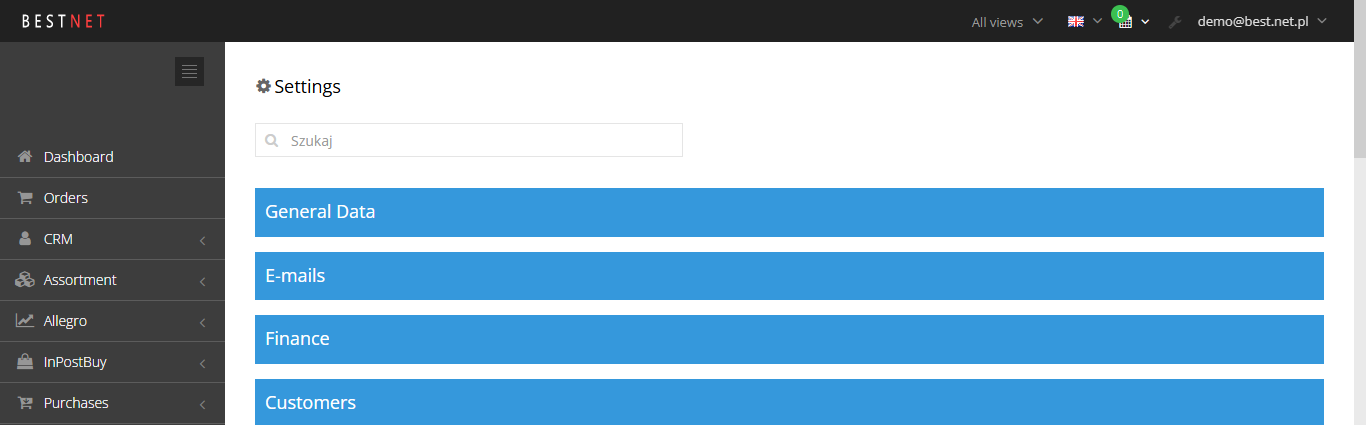
¶ Settings search

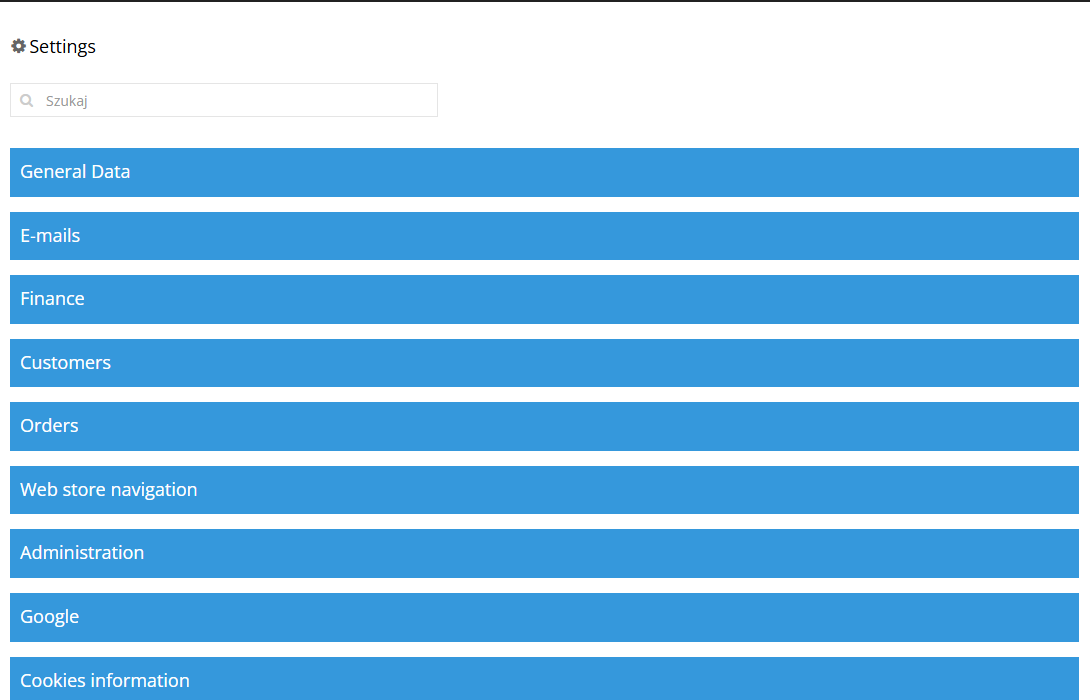
¶ List of tabs

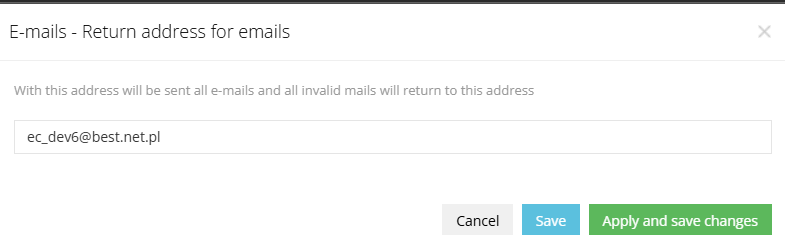
¶ Saving a change in the edit modal
¶ List of pending changes

¶ Quick settings search
¶ How it works
¶ Setting tabs
- Settings are grouped into tabs shown as blue bars (e.g. General data, Emails, Finance, Customers, Orders).
- Clicking a bar opens the list of items to edit in that tab.
- All tabs are available right away - there is no split into a standard/technical view.
¶ Settings search
- The search field above the list of tabs finds a setting by any searched keyword.
- The suggestion list shows which tab a given phrase is in.
¶ Editing a parameter (modal)
- Clicking the edit icon (an orange pencil) opens a modal with a field matching the setting's type: radio, checkbox, text field or a dropdown list.
- After making a change, three options are available: Cancel, Save, Save and apply.
¶ Saving changes
- Cancel - no value change; the setting is not marked, and no floating button with the option to confirm changes appears.
- Save - the value changes, the setting is marked with a question mark, and a floating button (a floppy-disk icon) appears in the corner of the screen. Clicking the floating button shows the list of pending changes - from there they can still be cancelled, or saved and applied.
- Save and apply - the change is confirmed immediately, with no intermediate step; the setting is not marked, and the floating button does not appear.
¶ Limitations
We do not verify the configuration for legal compliance - the store's terms of service and the values of individual settings are set by the store.
¶ Frequently asked questions
Does a setting change in Hummerce take effect right after clicking "Save"?
No. The "Save" button only marks the setting for confirmation - it still needs to be confirmed from the list of pending changes, or you can choose "Save and apply" right away.
Can you search for a setting by name without knowing which tab it's in?
Yes. The search suggests matching keywords together with the name of the tab they're in.
Does the settings panel require switching views (standard/technical)?
No. As of version 2.28, all tabs are available right away, with no split into views.
Can a setting change be undone before it's applied?
Yes. As long as the change has "Save" status (not "Save and apply"), it can be cancelled from the list of pending changes.
¶ Related
- Hummerce admin panel - first steps - login and first steps in the Hummerce panel.
- Change History - Store Change Audit in Hummerce - a view of who changed a given setting, and when.
- Admin Permissions - Roles and Permissions in the Panel - who has access to the store's configuration.
Want to see your store's configuration in Hummerce? Book a free demo (in Polish).
¶ Configuration details
¶ Access in the admin panel
- Configuration -> Settings - a search field, the list of tabs (blue bars), editing a single setting through the pencil icon.
- Confirming changes - a floppy-disk icon (floating button) visible once at least one change has been marked for saving.