¶ Banners - homepage slider with a display schedule
Banners in Hummerce are large images in a slider on the store's homepage - for promotions, new products and announcements. Store staff add them in the panel, set their order, and can schedule when each banner should show: on which dates, hours and days of the week. Seasonal campaigns and time-limited announcements turn on and off by themselves, with no one needing to watch them at night or on weekends.
As of Hummerce 2.34 (latest module changes: 2.34.1), updated 2026-09-28.
¶ Benefits and use cases
- Seasonal campaigns with no after-hours work: a holiday banner from December 1 to 24, Black Friday from Friday 00:00.
- Time-of-day messages, e.g. "Order by 12:00 - we'll ship today" shown only until noon.
- Promotions on low-traffic days, e.g. a discount banner shown only on Tuesdays and Wednesdays.
- Prepare the whole banner calendar in advance - each one appears and disappears on its own.
- Order under control: the most important campaign always shows on the first slide.
- Different banner content for each store language.
- GA4 measurement of which banners customers view.
¶ What it looks like
Screenshots from the Hummerce demo store (BS5 template).
¶ Homepage slider

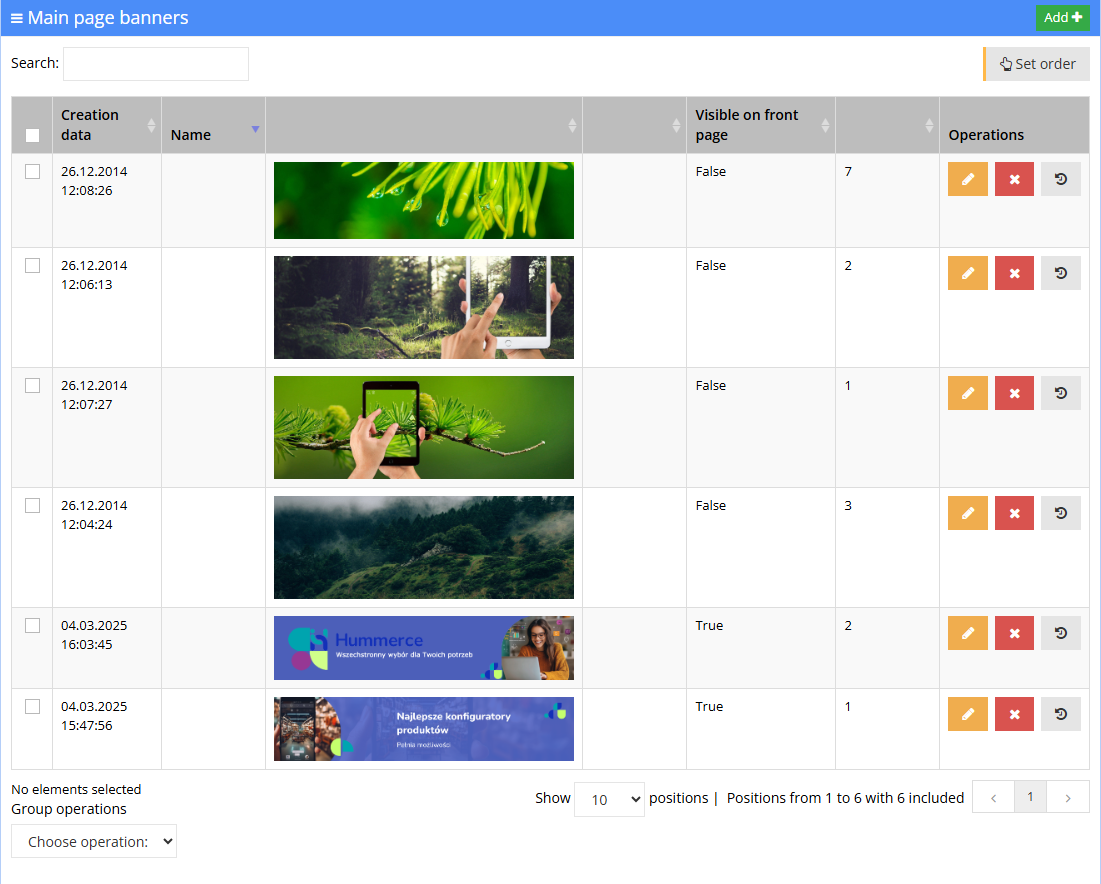
¶ Banner list in the panel
¶ Banner schedule
¶ How it works
¶ Where banners are displayed
- Banners (panel: Contents -> Main page slider) are the slider at the top of the homepage. In the BS5 template, the slider auto-advances every 8 seconds, pauses on hover, and has arrows. On large screens, tabs with banner names appear below the slider.
- Other spots for promotional graphics (e.g. the bar above the header, banners within homepage content, the footer) are Canvases and content. There, the display period is set on the content assigned to the canvas: dates only, no hours or days of week.
¶ What a banner contains
- Name - shown in the tab below the slider in the BS5 template; also used as alt text when the image has no description. Has language versions.
- Image (Image) - the banner graphic, with a description (alt text for screen readers and search engines). The BS5 template displays it at 1440 x 315 px.
- Content (Content) - optional text or HTML overlaid on the image. Has language versions.
- Visible on site - the main on/off switch for the banner.
- Priority - order in the slider.
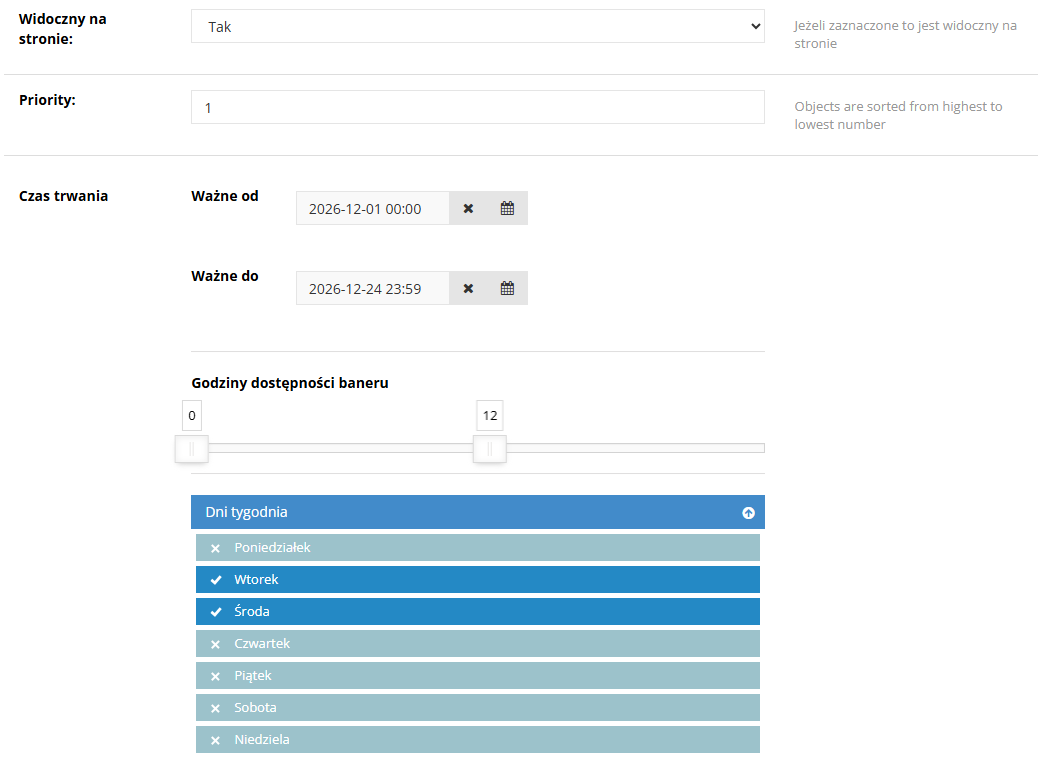
- Schedule - Duration: Date from, Date to, Banner availability hours, Days of week.
- In the BS5 template a banner can also have a separate mobile photo (shown on screens up to 575 px wide, at 430 x 400 px) and a click-through URL. These two fields are added during implementation - they're not part of the standard configuration (see Implementation).
¶ Display schedule
- Date from / Date to - date and time to the minute (e.g. from
2026-12-01 00:00to2026-12-24 23:59). An empty field means no restriction on that side. - Banner availability hours - a range of full hours from 0 to 23, applied every day within the valid period. The end hour marks the end of a full hour: a 0-12 range means display from midnight to 12:00. A 0-23 setting means the whole day (no restriction).
- Days of week - the days the banner is shown on. No day selected means every day.
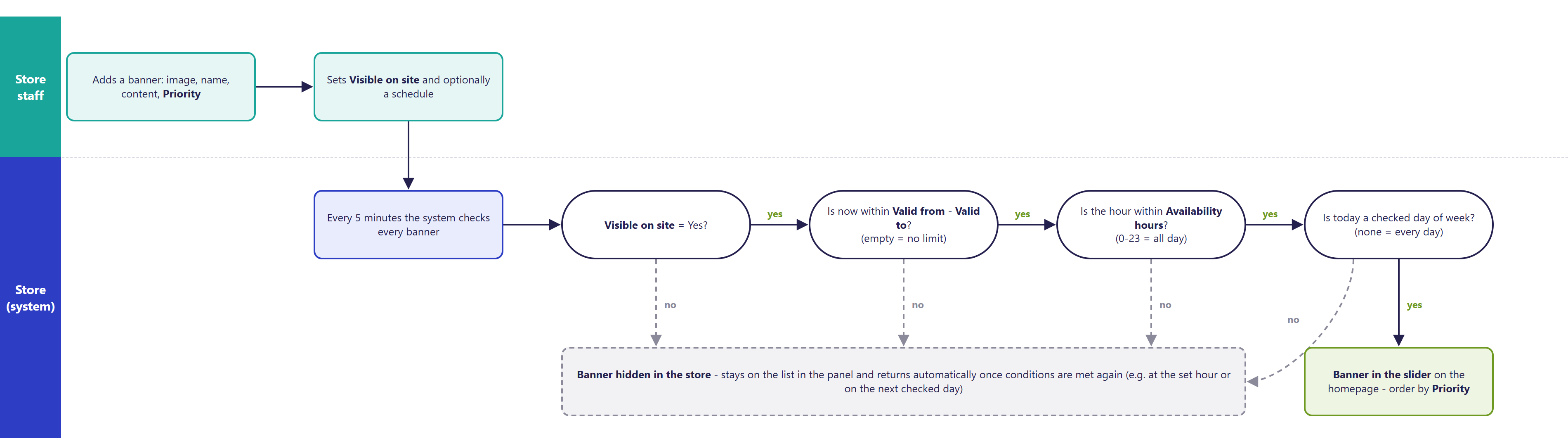
- All conditions apply together - a banner is only visible when it meets every one of them. Example: December 1-24, 0 to 12, on Tuesdays and Wednesdays.
- Visibility is determined by the store server's clock.
- The system checks banners every 5 minutes (the Update Banner Visibility task). This also applies to a manual change of Visible on site - a banner appears or disappears within a few minutes of saving, or of the scheduled time, not in the same second.
¶ When a banner is visible
¶ After the schedule ends
- The banner disappears from the store but stays on the list in the panel with Visible on site = Yes. It is not deleted or disabled.
- With hours and days of week set, the banner comes back on its own in the next scheduled window.
- After the Date to date, the banner won't come back. To reuse it, just change the dates.
- If no banner meets its conditions, the slider is empty - it's worth keeping one permanent banner without a schedule.
¶ Order
- The slider shows banners by Priority - from the lowest number: a banner with priority
1comes first,2second, and so on. - The field description in the panel ("Objects are sorted from highest to lowest number") and the Set order button on the list do not affect the order in the store - only Priority does.
¶ Language versions and views
- Name and Content have separate values for each store language.
- There is one image for all languages. Text that should change with the language is better placed in Content than on the image.
- Banners are shared across all views (stores) - the same set is shown in every view.
¶ Images, WebP and AVIF
- Images are uploaded through the File and image manager - with compression and an optional WebP version.
- The BS5 template shows the WebP version in the slider when the store has Show WEBP in image tag enabled - provided the WebP file was created alongside the original.
- The AVIF format is not supported in the slider - banners display in the original format or in WebP.
- The first banner loads immediately; the rest load only when needed - the homepage loads faster.
¶ Link and hotspots on the banner
- Clicking a banner in the BS5 template goes to the URL set in the banner's link field (added during implementation). Without it, the banner isn't clickable, and a link can be placed in Content instead.
- Hotspots on the banner - points on the image that show a product description on hover. They only work in the BS4 template (LayerSlider) and are configured by the implementation team. The Options field (slide animations) also applies only to BS4.
¶ Measuring performance in GA4
- A store with GA4 enabled sends internal promotion events:
view_promotion(banner shown) andselect_promotion(banner clicked). - The BS4 template sends both events with the banner name.
- The BS5 template sends views with the banner ID. Clicks and the banner name in the report currently require a template update (see Limitations).
¶ Version
- Banners in the slider have been available for a long time, in all store versions.
- Display schedule (dates, hours, days of week) - from version 2.33 in the panel and in the BS4 template, in the BS5 template from version 2.34. In older versions a banner is simply on or off, with no schedule.
- Latest module changes: version 2.34.1.
¶ Dependencies
- The BS5 or BS4 store template. Custom templates with a modified slider need to be adapted to the schedule.
- The Update Banner Visibility system task - runs by default, every 5 minutes.
- WebP images - the image optimization module with WebP display enabled (File and image manager).
- GA4 measurement - deployed GA4 (Google Tag Manager).
- Banner content and graphics, image rights and promotion terms - the store's responsibility.
¶ Implementation
- Works after updating to version 2.33 (BS4 template) or 2.34 (BS5 template) - banners and the schedule are handled in the panel with no development work. Development is needed in these cases:
- a separate mobile photo and banner link in the BS5 template - adding fields to the banner, testing,
- a custom template with a modified slider - adapting it to the schedule and priority order,
- full GA4 measurement of clicks and banner names in the BS5 template - completing the template,
- AVIF in the slider - adding format support to the template,
- testing on the test environment and production rollout.
- Minimum estimated time:
- standard BS5 or BS4 template - 0 h (the store sets up banners and the schedule on its own),
- mobile photo and banner link in the BS5 template - from 2 h,
- custom template with a modified slider - from 3 h.
- The time for a specific implementation depends on its scope - we quote it individually.
- What the time depends on:
- the store template and how customized the slider is (e.g. video, a different layout),
- the number of extra banner fields and template spots to change,
- the number of languages to fill in content for,
- the store version - a store older than 2.33 (BS4) or 2.34 (BS5) needs an update first (quoted separately),
- additional requirements, e.g. different banners per view (store) - quoted separately.
¶ Limitations
- A visibility change - scheduled or manual - takes effect with a delay of up to a few minutes (checked every 5 minutes). A banner can't be turned off "in the same second."
- Hours are full hours only (no minutes) and only within one calendar day - a range crossing midnight (e.g. 22-2) can't be set. With a range ending at 23, the banner disappears at 23:00.
- One schedule per banner - several periods (e.g. two separate campaigns in a year) require a copy of the banner.
- Order is by Priority only - the field description in the panel and the Set order button suggest otherwise.
- One image for all languages. Banners are shared across all views (stores).
- In the standard BS5 template, a banner has no separate mobile photo or link - these fields are added during implementation.
- AVIF is not supported in the slider.
- Hotspots on the banner and Options only work in the BS4 template.
- No preview of the schedule in the store "for a chosen day" - the effect is only visible at the scheduled time.
- No MCP tools or API for managing slider banners.
- We do not verify banner content for legal compliance - image rights, promotion terms and price information (e.g. the lowest price from the last 30 days) are set by the store.
¶ Future development
- Minutes within availability hours, and ranges crossing midnight.
- Several display periods on one banner.
- Banners assigned to views (stores), customer groups or languages, with a separate image per language.
- Full GA4 measurement in BS5 (clicks, banner name and position) and AVIF in the slider.
- Standard mobile photo and link fields in BS5.
- A schedule with hours and days of week for canvas content too.
- A homepage preview for a chosen day and hour.
- Banner management through the AI assistant (MCP).
¶ Frequently asked questions
Can the banner schedule be set up without a developer?
Yes. Dates, hours and days of week are set when editing a banner in the panel - with no development work.
Is a banner visibility change visible on the site immediately?
No. The store checks banners every 5 minutes, so a visibility change - manual or scheduled - may show up with a delay of a few minutes.
Does the "Set order" button change the banner order in the store?
No. Only the Priority field determines the order in the slider - the field description in the panel and the "Set order" button on the list have no effect on it.
Can a banner have a separate photo for mobile and be clickable?
Yes, in the BS5 template - but the mobile image and link fields are added during implementation, since they're not in the standard configuration.
How long does implementing banners in a standard configuration take?
0 h - the store sets up banners and the schedule on its own in the panel. A mobile photo and banner link in BS5 - from 2 h.
Does GA4 show banner clicks?
It depends on the template: yes in BS4, together with the banner name. In BS5, currently only views - full click measurement requires completing the template.
¶ Related
- Canvases and content - other spots for promotional graphics besides the homepage slider.
- File and image manager - uploading banner images and WebP compression.
- Google Analytics 4 - measuring banner views and clicks.
- B2C sales - overview
- On hummerce.com: B2C platform (in Polish).
Want to see how banners and the display schedule could work in your store? Contact the Hummerce team (in Polish).
¶ Configuration details
¶ Access in the admin panel
- Banner list: Contents -> Main page slider - columns Created, Name, Image, Content, Visible on site, Priority; search, Add, single and bulk delete.
- Banner editing: Name, Image (Path, Description), Options, Content, Hotspots on the banner, Visible on site, Priority, Duration (Date from, Date to, Banner availability hours, Days of week); a History tab with banner changes.
- Canvases and content: Contents -> Canvases, Contents -> Contents (Canvases and content).
¶ REST API and MCP
- No REST API or MCP tools for managing slider banners.
- Canvases and content (e.g. banners within homepage content) are supported by the MCP tools
ec2_canvas_list,ec2_canvas_details(what a canvas actually shows and why),ec2_content_list,ec2_content_details.
¶ Store messages
Banner content (Name, Content) is translated when editing the banner, in the language tabs. Messages are changed in the message editor. The key has a default value in Polish and English (in both cases "Banner").
| Key | Default value |
|---|---|
msg.indexSlider.bannerLabel |
Banner (screen-reader description of the banner link) |
¶ Parameters
Parameters are changed in Properties and locations.
| Symbol | Object | Label |
|---|---|---|
_name |
banner | Name |
_bannerImage |
banner | Image |
_bannerHTML |
banner | Content |
_bannerSlideOptions |
banner | Options (BS4 only) |
_dynamicPoints |
banner | Hotspots on the banner (BS4 only) |
_visible |
banner | Visible on site |
_priority |
banner | Priority |
_dateStart |
banner | Date from |
_dateFinish |
banner | Date to |
_hourStart |
banner | Hour from |
_hourFinish |
banner | Hour to |
_daysOfWeek |
banner | Days of week |
_display |
banner | Banner is displayed - set automatically by the system |
_bannerImageMobile |
banner | mobile photo - BS5, added during implementation |
_bannerLink |
banner | banner link - BS5, added during implementation |