¶ Google login - sign up and sign in with Google
Google login in Hummerce lets a customer sign in and register in the store with a Google account - without filling in the registration form and without creating another password. Built for stores that want to shorten registration and reduce abandoned forms, especially on phones.
As of Hummerce 2.35 (last changes to the module: 2.35.0), updated 2026-09-28.
¶ Benefits and use cases
- One-click registration - the customer doesn't fill in a form or think up a password.
- Email address confirmed by Google - fewer typos and fake accounts.
- Fewer password-reset requests.
- Account active right away - the customer doesn't wait for an activation email.
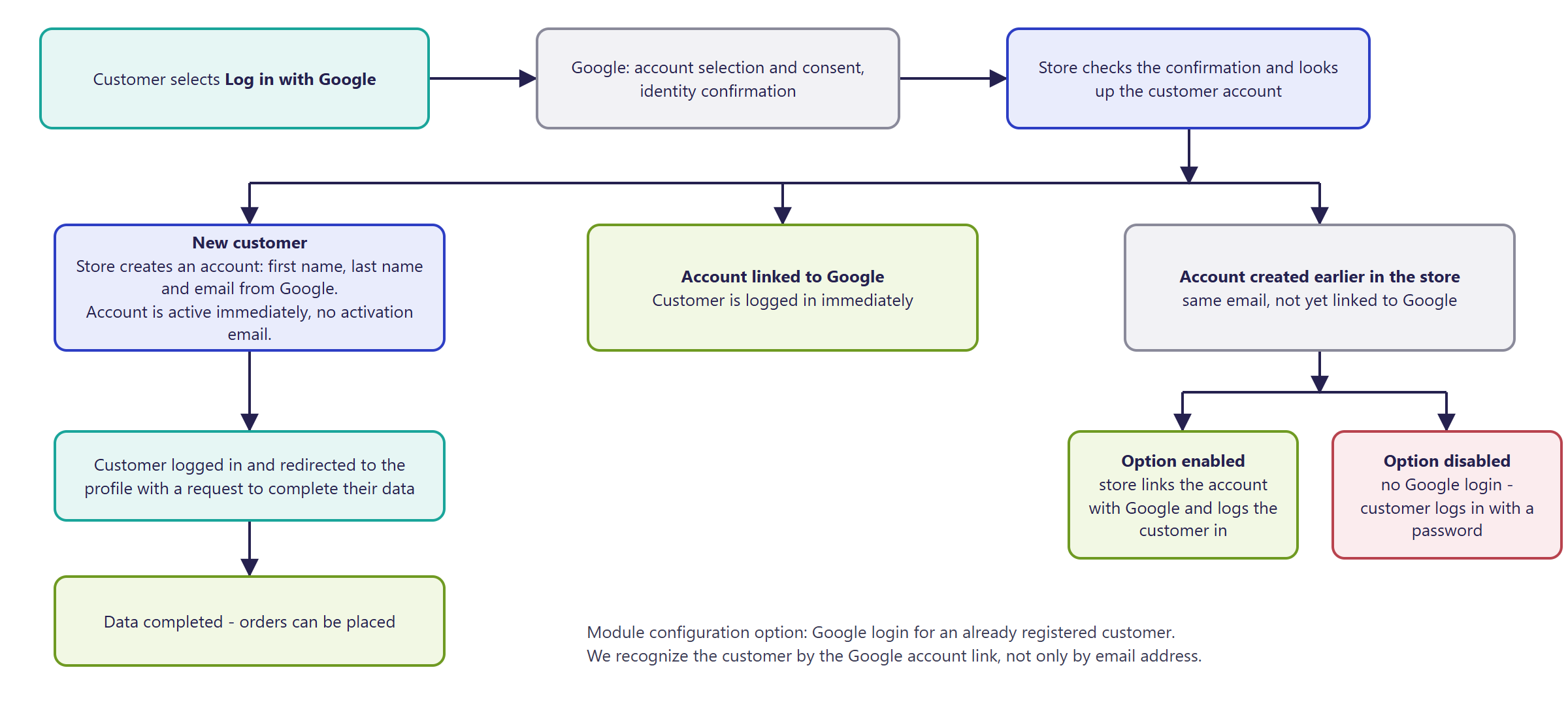
- Existing customers with a store account can start logging in with Google without creating a new account (when the option is enabled).
¶ What it looks like
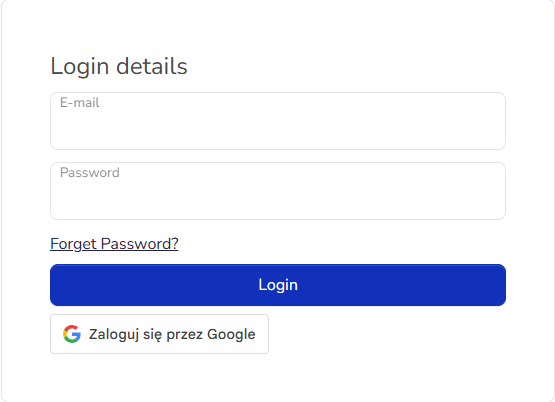
Screenshots from the Hummerce demo store (Bootstrap 5 template).
¶ Login page
¶ Registration page

¶ How it works
- The Sign in with Google button is on the login page and on the registration pages (individual and company).
- On these pages Google may also show a quick sign-in popup (One Tap). A customer who has logged in with Google before may be signed in automatically.
- From the Google account the store receives the first name, last name, and email address confirmed by Google. Google doesn't pass on the address, phone number, or company data.
- We recognize the customer by a persistent link to their Google account, not just by email address.
- An account created through Google is active right away - no activation email.
- The account gets a random password the customer doesn't know. If they also want to log in with a password, they set one via Forgot your password?.
- A customer logged in through Google cannot change their email address in the profile.
- Changing the login or email address (e.g. by store staff) removes the link to the Google account - the next Google login has to be linked again.
- Logins, registrations, and links to Google are recorded in the customer's history.
¶ Login scenarios
¶ Dependencies
- An app in Google Cloud for the store, with a client ID and the store's address entered - created by the store or by us as part of the implementation.
- The Bootstrap 5 or Bootstrap 4 template - the button is on the standard login and registration pages of both templates.
- Purchases require data Google doesn't pass on (address, phone). In the Bootstrap 5 template the order process itself asks for the missing data - see Registration and Simplified Registration.
¶ Implementation
- Requires implementation - the module doesn't turn on by itself after an update. Scope:
- creating an app in Google Cloud and obtaining a client ID,
- turning on the module and configuring it in the panel,
- adding the button to dedicated (custom) login and registration templates, if the store uses them,
- testing in a test environment and going live.
- Minimum estimated time:
- standard Bootstrap 5 or Bootstrap 4 templates - from 2 h,
- dedicated login and registration templates - from 4 h.
- The time for a specific implementation depends on its scope - we quote it individually.
- What the time depends on:
- whether the store has its own login and registration page templates,
- whether the store or we create the Google Cloud app,
- the number of domains and language versions of the store,
- the store version - a store on a version older than 2.35 needs an update first (quoted separately).
¶ Limitations
- Registration through Google always creates a natural-person account - even from the company registration form. The customer fills in company data in the profile afterwards.
- The module doesn't block purchases until the data is completed - it only asks for it after the first login. Checking data completeness in the order process works in the Bootstrap 5 template.
- The customer cannot unlink their Google account in the profile themselves - the link is only removed when the login or email address changes.
- A customer logged in through Google won't change their email address in the profile.
- With the login option for already registered customers disabled, trying to log in with Google to an existing account doesn't log the customer in - they then log in with a password.
- We do not verify the configuration for legal compliance - information about processing data from Google in the privacy policy and terms of service is filled in by the store.
¶ Future development
- Further login providers (e.g. Facebook, Apple) - the module has a shared foundation for such integrations.
- Unlinking the Google account by the customer in the profile.
- Company registration through Google with company data completed in one step.
- Google login in the order process (cart).
- Tighter integration with simplified registration - one path for completing missing data before purchase.
¶ Frequently asked questions
Does the customer have to set a password to log in with Google?
No. The account gets a random password the customer doesn't know. If they also want to log in with a password, they set one via "Forgot your password?".
Does Google pass the customer's address and phone number to the store?
No. From the Google account the store only receives the first name, last name, and confirmed email address - the customer has to provide the rest themselves, when completing their profile or in the order.
Can an existing customer start logging in with Google to an already existing account?
Yes, if the store enables this option in the panel. Without it, logging in with Google to an account created earlier another way won't work - the customer logs in with a password.
Can the customer unlink their Google account in their profile?
Not in the standard. The link to the Google account is only removed when the customer's login or email address changes.
Does Google login also work for company registration?
Partly. Registration through Google always creates a natural-person account - the customer fills in company data in the profile afterwards.
How long does implementing Google login take?
From 2 h in the standard Bootstrap 5 or Bootstrap 4 template, from 4 h with dedicated login and registration templates - the exact time depends on the implementation scope.
¶ Related
- Registration and Simplified Registration - the other paths for creating an account and completing missing data before purchase.
- B2C sales in Hummerce: /en/sales/b2c.
Want to see how Google login could work in your store? Contact the Hummerce team (in Polish).
¶ Configuration details
¶ Access in the admin panel
- Panel configuration: the Google OAuth2 group:
- Enable OAuth2 login - turns on login with Google (disabled by default),
- Client ID - the client identifier from Google Cloud,
- Allow login via google OAuth for already registered user - whether a customer with an account created earlier in the store can log in with Google to the same account (disabled by default).
- Customer in the panel: the Google OAuth2 subject parameter - the identifier of the link to the Google account, filled in automatically at the first login.
- Customer history: entries for logging in, registering, linking, and removing the link with Google.
¶ Store messages
Messages are changed in the message editor. Default values are in Polish and English.
| Key | Default value |
|---|---|
msg.oAuth2.newRegisteredUser |
Your account has been created, but in order to make a purchase in the store, you must complete the following information |
msg.oAuth2.cannotEditEmail |
Cannot edit email address when you are logged in via external services |
error.oAuth2.unallowedEmailChange |
You cannot change your email address while logged in via an external service |
error.oAuth2.loginError |
An error occurred while trying to log in via OAuth2 |
error.oAuth2.editUserError |
An error occurred while authorizing your account via OAuth2. |
The text on the Google button (e.g. "Sign in with Google") is generated by Google in the customer's browser language - it isn't changed in the store's messages.
¶ Parameters
| Symbol | Object | Label |
|---|---|---|
_googleOAuth2Sub |
customer | Google OAuth2 subject (link identifier, filled in automatically - don't change it by hand) |