¶ File and image manager - uploading and optimizing photos
The file and image manager is a single place in the Hummerce panel for uploading, editing and organizing store images and files - product photos, content graphics, manuals and certificates. Images can be compressed and saved in the modern WebP and AVIF formats right away, which speeds up the store and improves Google PageSpeed results.
As of Hummerce 2.35 (latest module changes: 2.35.51), updated 2026-09-28.
¶ Benefits and use cases
- Faster pages: AVIF is usually 20-50% lighter than WebP at comparable quality, and WebP is noticeably lighter than jpg and png.
- A better Google PageSpeed score with no manual image work - the customer's browser picks the format.
- A product photo in several sizes from a single upload, with no image editor - including cropping and a watermark.
- Downloadable files (manuals, spec sheets, certificates, declarations) uploaded and replaced by store staff, with no FTP access.
- Control over who can change store files - through admin permissions.
- Bulk photos from an import - e.g. a new collection of several hundred products with no manual uploading.
- Photos added by the AI assistant - e.g. filling in missing photos or moving a catalog to a second store.
¶ What it looks like
Screenshots from the Hummerce demo store.
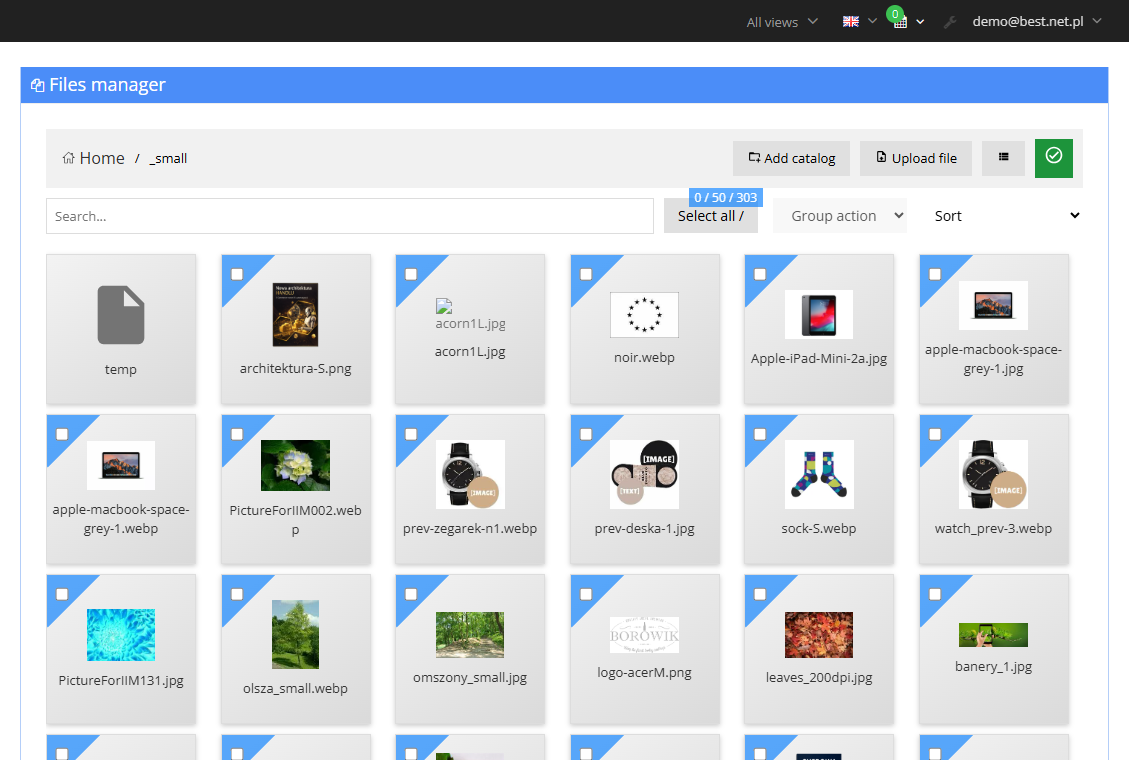
¶ File manager in the panel
¶ Image configuration
¶ How it works
¶ File manager
- Browsing store file folders, searching by name, sorting by name and size, a preview with dimensions, size and modification date.
- Uploading several files at once (also by dragging), creating and deleting folders, renaming, downloading, single and bulk delete.
- Two modes:
- images - by default jpg, jpeg, png, gif, webp, avif files,
- files - by default pdf, txt, xls, dwg, doc, plus all image formats.
- The store changes the lists of allowed extensions in the configuration.
- Every uploaded file is checked - the store rejects:
- executable files and scripts (e.g. php, jsp, exe, sh, js), regardless of settings,
- files containing script code in their content (e.g. an image with a hidden script),
- extensions outside the allowed list.
- File names: letters without Polish diacritics, digits and underscores.
- The same manager opens everywhere a panel lets you pick an image or file: on the product page (Photos and files), in image- and file-type parameters, in the content (WYSIWYG) editor.
- Access to the manager is granted in admin permissions - e.g. files can be made available only to selected people (Admin permissions).
¶ Uploading a photo to a product or content
- An image is picked from disk or from files already uploaded to the store.
- Before saving, an image can be adjusted in the built-in editor: cropping, rotation, flipping, filters, brightness and color correction, resizing, captions and a watermark.
- A single upload saves every size of the product photo (e.g. thumbnail, product-page image, zoom) - the window shows the target size of each one.
- Resizing works when Resize uploaded images is enabled in the configuration. The image's proportions are kept.
- The dimensions of each size are set for the store during implementation (they depend on the template).
- When uploading, you can check:
- Compress images - jpg and png compression with no visible quality loss (png losslessly, jpg at the quality set in the configuration),
- Save WebP version, Save AVIF version - an extra file in a modern format alongside the original.
- The default values of these fields come from the store's configuration (Auto compress, Convert images to WEBP, Convert images to AVIF).
- Alternative images (the product gallery) are added the same way - each has its own full set of sizes.
¶ Optimization and the WebP, AVIF formats
- Auto compress - an image is compressed every time an image changes on a product, category, page, etc. The file is only replaced when the result is smaller than the original.
- Convert images to WEBP / Convert images to AVIF - a WebP / AVIF version is created alongside every compressed image. The jpg or png original stays.
- Show WEBP in image tag / Show AVIF in image tag - the store offers the browser several image versions, and it picks the best one it supports: AVIF, then WebP, then jpg or png last.
- Show fallback image format - whether to also offer the jpg or png original as a fallback version (on by default).
- Conversion quality is set separately for each format. Default: JPG 85, PNG 95, WebP 80, AVIF 80 (scale 1-100).
- Excluded directories - folders whose images the store doesn't optimize (e.g. hand-prepared graphics).
- Previously uploaded images are optimized and converted by the Image optimization transfer (Data transfer):
- it goes through every jpg and png image in the store and creates missing WebP and AVIF versions per the configuration,
- the Date from field limits the work to images changed after that date,
- with a large number of images it can take many hours; interrupting it doesn't undo versions already created.
¶ Product image import
Two transfers for bulk-assigning images when there are too many for manual uploading (e.g. a new delivery, images from the manufacturer).
- Product image import (from FTP) - assigns images already uploaded to the store (e.g. through the file manager):
- folders are named after image sizes (e.g.
_small,_big,_popup, and for alternative images_big_multi_1, etc.), - the file in the folder is named after the product's symbol, e.g.
ABC123.jpg, - formats: jpg, jpeg, png, gif, bmp, tiff,
- images aren't resized - each size must be prepared beforehand,
- test mode lets you check the result without saving; the report shows the number of images that couldn't be assigned (no product with that symbol).
- folders are named after image sizes (e.g.
- Image import - downloads originals from a given server (FTP or a web address), resizes them to all store sizes and assigns them to products:
- source: a list of files in the product's "Images to import" parameter, or a server folder named after the product's symbol (or the value of the "Catalog index - images" parameter),
- the first image becomes the main image, the rest become alternatives,
- files get friendly names based on the product's URL (better image search ranking), saved in the "Friendly image name" parameter,
- the product range is chosen with criteria; the import is also available as a bulk operation on the product list (Bulk operations on items).
¶ Version
- From version 2.33 - the file manager, a new image upload window with an editor, optimization and WebP on upload. Older versions use the earlier tool.
- The AVIF format - from version 2.34.
- Image handling through the AI assistant (MCP) - from version 2.35.
- Latest module changes: version 2.35.51.
¶ Dependencies
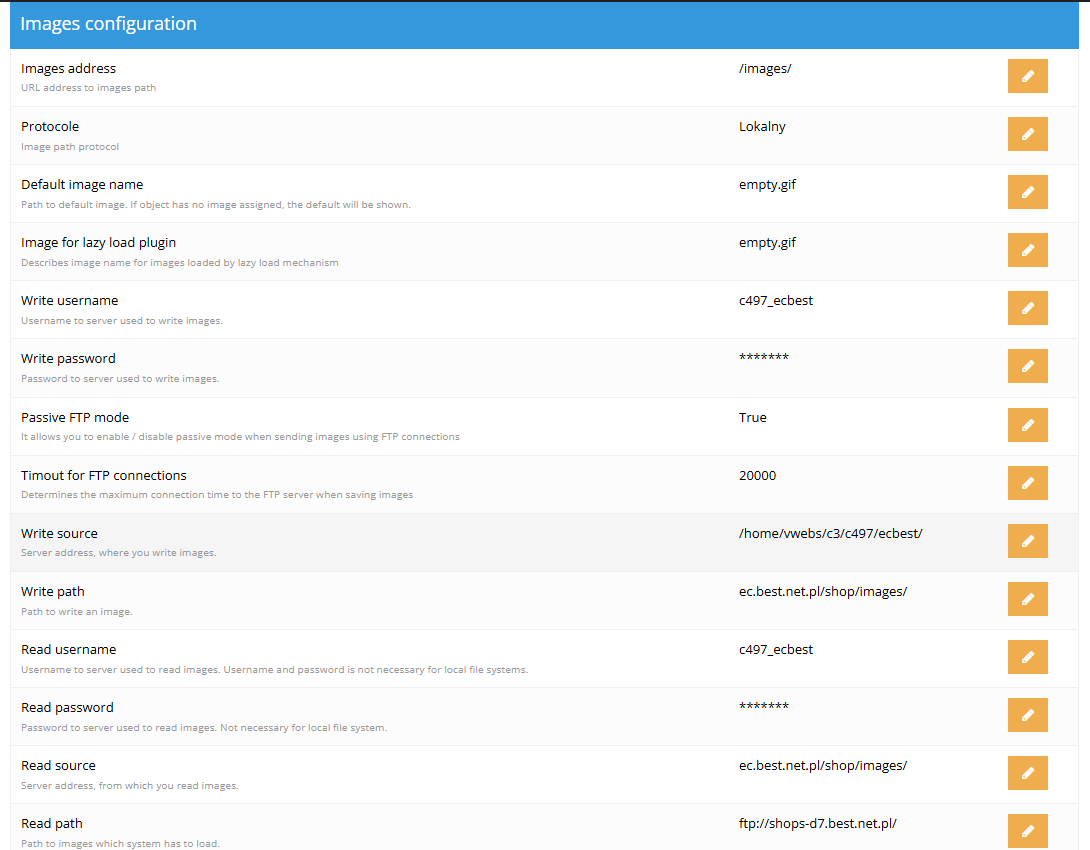
- The store's image and file server configured in the Image configuration and Files configuration groups (address, save and read paths) - set up during store deployment.
- An image-processing program on the store server, required for resizing, compression and conversion; AVIF requires a version with support for that format.
- Displaying WebP and AVIF in the store - the template must display images through the standard Hummerce mechanism. This is the case in the main spots of the BS5 and BS4 templates (lists and the product page).
- Importing from an external server - access credentials for the source server (Image import group).
¶ Implementation
- Works after updating to 2.33 - the manager replaces the earlier tool. It requires checking the configuration and testing. Scope:
- verifying the image and file server settings and image dimensions,
- granting selected admins access to the manager,
- testing uploading a product image, a file and a content-editor graphic.
- WebP and AVIF require setup - the feature is in the store but off by default. Scope:
- enabling conversion and setting the quality,
- running the Image optimization transfer for existing images (server processing time depends on the number of images and isn't counted as billable hours),
- enabling display only after generating versions for existing images,
- adding AVIF support in template spots that display images with their own code (e.g. gallery thumbnails, banners),
- checking the look and speed of the site after the change.
- Minimum estimated time:
- file manager after updating - from 1 h,
- WebP and AVIF, BS5 template - from 3 h,
- WebP and AVIF, BS4 or a custom template - from 6 h,
- importing images from an external server - from 2 h.
- The time for a specific implementation depends on its scope - we quote it individually.
- What the time depends on:
- the number of template spots that display images outside the standard mechanism (banners, sliders, homepage blocks),
- how customized the template is,
- the number of images in the store - it affects transfer time and result checking,
- the store version - a store older than 2.33 (2.34 for AVIF) needs an update first (quoted separately),
- an unusual image structure at the supplier for imports (quoted separately).
¶ Limitations
- WebP and AVIF are additional files alongside the original - images take up more space on the server.
- Once WebP or AVIF display is enabled, the store assumes the version exists. For an image with no generated version, the browser may not show an image - which is why display is enabled only after the Image optimization transfer finishes.
- The Image optimization transfer only supports jpg and png - gif images are neither compressed nor converted.
- Images placed in descriptions (the WYSIWYG content editor) and banner graphics display in the original format. A WebP or AVIF version can be uploaded, but it has to be inserted manually.
- The BS5 and BS4 templates show AVIF only where images are displayed by the standard mechanism. Spots with custom code (e.g. product gallery thumbnails, language flags) currently only have WebP.
- Resizing doesn't crop an image - at a different aspect ratio than the target size, the resulting image is smaller on one side. Cropping has to be done in the editor.
- Product image import (from FTP) doesn't resize images and doesn't accept WebP or AVIF files - each size has to be prepared beforehand in jpg or png.
- By default the manager doesn't accept docx, xlsx, zip or svg formats - they have to be added to the extension list (svg is neither resized nor converted).
- File names without Polish diacritics or spaces - files with such names have to be renamed before uploading.
- The manager doesn't version files - replacing or deleting a file is irreversible, and deleting a file doesn't remove references to it in products and content.
- Compression won't significantly shrink already-compressed images - a WebP or AVIF version gives a bigger gain.
- We don't verify rights to uploaded images and files - licenses, image rights and copyright are the store's responsibility.
¶ Future development
- Automatic replacement of images in descriptions (WYSIWYG) and banners with WebP and AVIF.
- AVIF support in every spot of the BS5 and BS4 templates.
- Uploading WebP and AVIF images as originals, with automatic creation of a jpg version.
- AI features in the manager, e.g. generating alt text, background removal, image upscaling.
- Detecting unused files and images.
- A trash bin with the option to restore a deleted file.
¶ Frequently asked questions
Does Hummerce automatically create WebP and AVIF versions of images?
Yes, once conversion is enabled in the configuration. They're created as additional files alongside the original, and the customer's browser gets the best format it supports.
Can images be edited without an image-editing program?
Yes - the built-in editor lets you crop, rotate, flip, adjust brightness and color, resize, and add captions and a watermark before saving.
Can images be uploaded for several hundred products at once?
Yes, with the Product image import (from FTP) and Image import transfers - the second one resizes images to every size on its own and assigns them to products.
How long does setting up the manager and WebP/AVIF take?
The file manager after updating - from 1 h. WebP and AVIF - from 3 h in the BS5 template, from 6 h in BS4 or a custom template.
Can a deleted file be undone?
No. The manager doesn't version files - replacing or deleting one is irreversible, and deleting doesn't remove references to the file in products and content.
¶ Related
- Banners - banner images and graphics are uploaded through the same manager.
- HTML property editor (WYSIWYG) - inserting images in content.
- Bulk operations on items - bulk image import as a bulk operation.
- Digital accessibility (WCAG, EAA) - alt text for product and banner images.
Want to see how the file and image manager could work in your store? Contact the Hummerce team (in Polish).
¶ Configuration details
¶ Access in the admin panel
- File manager: Content -> Files.
- Product images: the product page, Photos and files tab.
- Panel configuration (technical configuration):
- Image configuration group:
- Auto compress - off by default,
- Resize uploaded images,
- Convert images to WEBP, Show WEBP in image tag - off by default,
- Convert images to AVIF, Show AVIF in image tag - off by default,
- Show fallback image format - on by default,
- JPG - Default quality, PNG - Default lossless quality, WEBP - Default quality, AVIF - Default quality,
- Excluded directories,
- Image extensions - formats the manager accepts,
- the image server's address and paths (Image save host, Image save path, Image read host, Image read path),
- Files configuration group: File extensions, plus the file server's address and paths,
- Image import group: the import's source and target server, Import from property (a list of files in a parameter, or a folder named after the product's symbol).
- Image configuration group:
- Data transfer: Image optimization, Product image import (from FTP), Image import.
- Bulk operation on items: Image import.
- Product: the "Images to import", "Friendly image name", "Catalog index - images" parameters.
- Permissions: access to the file manager is granted in admin roles (Admin permissions).
¶ REST API and MCP
- MCP (AI assistant - MCP server):
ec2_image_upload(upload an image, optionally assigning it right away to a product, category or page, with alt text),ec2_image_list(list images at a given size),ec2_image_get(download an image, e.g. to move it to another store). They require panel permissions to images; the limit is about 12 MB per image.
¶ Parameters
| Symbol | Object | Label |
|---|---|---|
_small, _big, _popup (and alternatives ..._multi_1, etc.) |
product | product image sizes - also the names of the image folders; the set depends on the store |
images_to_import |
product | Images to import |
friendly_url_for_image |
product | Friendly image name |
_imageCatalogIndex |
product | Catalog index - images |