¶ Allegro - direct integration
The Allegro integration in Hummerce connects the store directly to a seller account on Allegro, with no middleman. The store lists and updates offers, retrieves orders from Allegro, and sends back statuses, tracking numbers and sales documents to Allegro. The marketplace team handles everything from one panel, instead of switching between two systems.
As of Hummerce 2.32-2.35 (latest module changes: 2.35.55), updated 2026-10-07.
¶ Benefits and use cases
- One panel for the store and Allegro - offers, orders and their handling with no need to log in to Allegro for day-to-day work.
- No overbooking - offer stock follows the store's warehouse stock, and minimum/maximum quantity limits guard against showing the whole warehouse across several accounts at once.
- Faster shipping, fewer buyer questions - the status and tracking number reach Allegro automatically.
- Invoices on Allegro with no manual upload - the buyer downloads the document directly on Allegro.
- Bulk work on offers - changing the shipping price list, dispatch time, VAT rate, descriptions and photos from a template for hundreds of offers at once.
- Compliance with Allegro's requirements - product safety information (GPSR), the Business flag, application identification, a declaration for AI-created photos.
- Several seller accounts (e.g. separate brands) in one store, each with its own view and delivery mapping.
- No integration middleman fees - the integration uses the Allegro REST API directly.
- Fast problem diagnosis ("why didn't this order come through") in the diagnostic panel and through the AI assistant (MCP).
¶ What it looks like
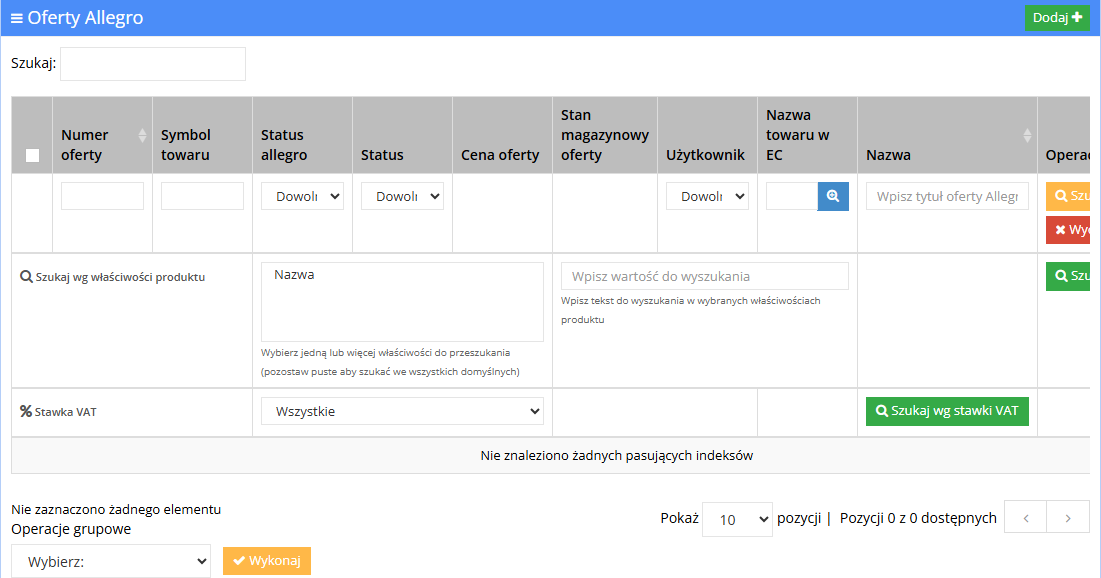
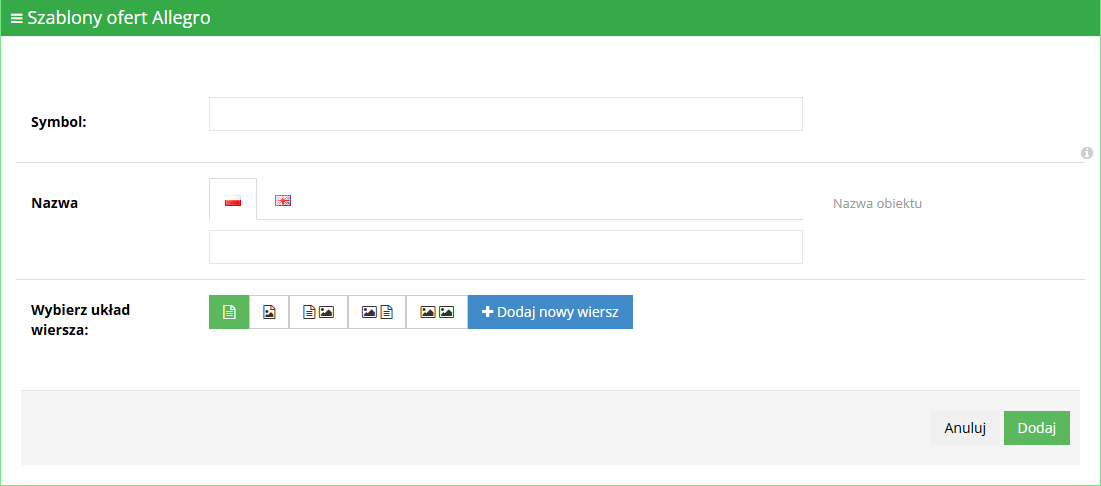
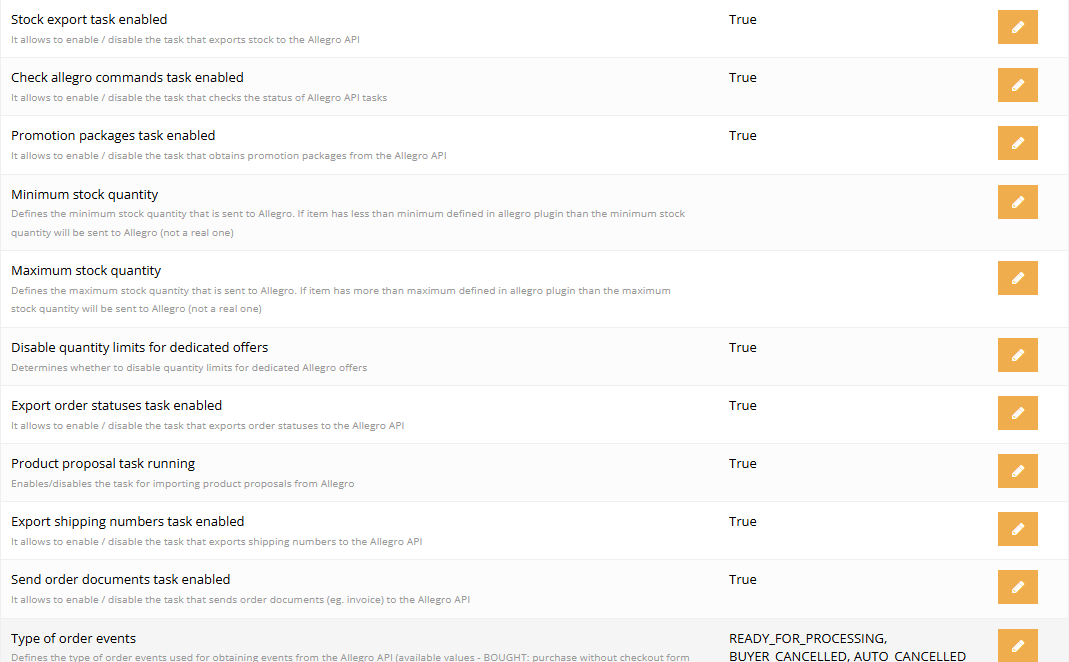
Screenshots from the Hummerce demo store panel (Allegro in test mode).
¶ Managing offers
¶ Offer template
¶ Configuration - tasks and stock levels
¶ How it works
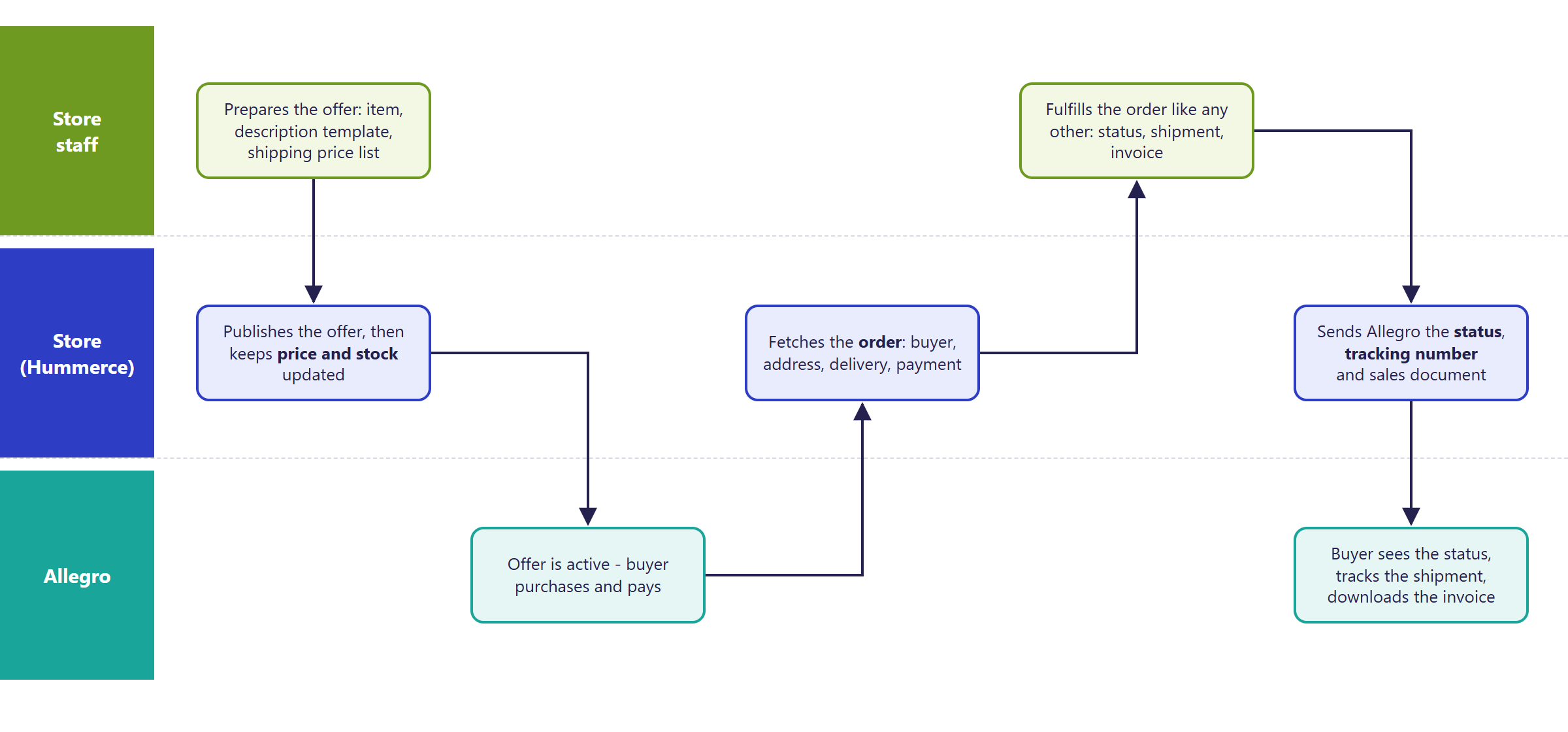
¶ Flow: offer - order - status
¶ Application and seller accounts
- The store connects to Allegro through an application registered in the Allegro developer portal. The application data is entered in the module configuration, or in a separate section for exceptional cases.
- The integration switches between Allegro's test environment (sandbox) and production - implementation starts in test mode.
- One store can handle several Allegro seller accounts. Each account:
- authorizes once with Allegro (device code) - authorization status is shown on the account list (e.g. "Pending," "Authorized," "Token expired," "Revoked"),
- has its own delivery mapping, optionally its own view and its own set of application data,
- has separate toggles for fetching events and orders, fetching offers, updating offers, and updating stock levels - so an account can be configured first and only later switched on for data exchange,
- can start fetching from a specific Allegro event, so orders already handled by another integration aren't imported twice.
- Tokens refresh automatically. When an account loses authorization, the store sends an email notification with a link to re-authorize.
¶ Offers
- Managing offers shows offers from every account: offer number, the store item, Allegro status, shipping status, price, stock, seller account.
- Offers that already exist on Allegro are imported by the store and linked to items by the item's symbol in the store. An offer with no such link can be linked to an item manually - orders from that offer then also reach the store.
- A new offer is created in the panel from an item. The product is matched from the Allegro catalog by EAN code; if the EAN matches several products, the panel asks you to choose. An offer can be saved together with a new item in the store.
- The offer's price and parameters come from the view set as the Allegro Marketplace view. The price can be changed on the offer list; a synchronization setting decides whether the offer price follows the store price.
- The offer's stock level follows the item's stock in the store, within the minimum and maximum quantity set in the configuration. Several offers (e.g. on different accounts) can draw on the same item stock.
- Searching offers: by offer number, item symbol and name in the store, Allegro offer title, any item property, statuses, account and VAT rate.
- Bulk operations on selected offers: updating photos and description from a template, changing dispatch time, changing the shipping price list (needs the list filtered by seller account first, since price lists are assigned to the account on Allegro), updating the VAT rate, ending an offer, relisting it. Allegro processes bulk operations asynchronously - the store checks the result with a separate task.
- Ended offers disappear from the list after the number of days set in the configuration.
- Offers (including photos and descriptions built from templates) can be exported and updated with an Excel file in Bulk operations on items.
¶ Offer templates
- A description template is made of rows with a chosen layout: text, image, text with image, image with text, two images - matching the description layouts Allegro accepts.
- Item data (name, description, properties) and the item's marketplace photos are inserted into the rows, so one template serves many offers.
- A template is checked on a sample item before use. It's assigned to an offer or applied to many offers with a bulk operation. A template's name can have a version in several panel languages.
¶ Product suggestions
- When an item isn't in the Allegro product catalog, the store can submit it as a new-product suggestion, linked to a seller account and a store item.
- The store periodically checks the suggestion's status on Allegro. The panel warns when a suggestion for the product already exists.
¶ Product safety (GPSR) and attachments
- The offer carries the producer, the responsible entity (a person or the producer responsible) and product safety information - either as content or as a "Safety instructions" attachment.
- Attachments (e.g. a manual, an energy label, a product card) are sent from files saved in the item's properties - which properties map to which attachment types is set up in the configuration.
- Allegro doesn't allow deleting attachments through the API - the store can only mark them for deletion.
- When Allegro's trusted-content verification (TrustedContent) is enabled, the store doesn't overwrite fields Allegro has locked.
¶ AI-created photos (AI Act)
- On an offer you can mark that its photos were generated or substantially modified by artificial intelligence. Once marked, the store declares to Allegro all of the offer's photos as created or substantially modified by AI (a declaration in line with the AI Act mechanism in the Allegro API).
- The declaration is sent to Allegro only when the setting AI images declaration (aiCoCreatedContent) enabled is on. It is off by default because Allegro did not yet honour this field - while the setting is off, the store sends no declaration, even for an offer with the field marked.
- The seller is responsible for the accuracy of the declaration - the store passes on the flag and does not assess the photos.
¶ Allegro Business - VAT rate
- An offer with a VAT rate passed to Allegro is marked there as available to business customers ("Business").
- The store sends the rate when creating the offer and on every update. The offer list lets you search offers with and without a rate, and fill in the rate with a bulk operation.
¶ Importing orders
- The store fetches selected order event types from Allegro - by default: paid and ready for fulfillment, cancelled by the buyer, cancelled automatically.
- An order in the store gets: buyer data (first and last name, company, email, phone, Allegro login), the delivery address and invoice data (including the tax ID), the pickup point (e.g. a parcel locker), the delivery method mapped from Allegro to a store delivery method, the payment method, the buyer's message to the seller, the Allegro transaction and payment number, the order's source and view.
- Cancelling an order on Allegro cancels the order in the store.
- Further handling is regular order handling in the panel, including passing the order to the ERP system.
- Emails from the store to the Allegro buyer are off by default, since Allegro already informs the buyer - they can be turned on with a separate setting.
¶ Delivery mapping and error handling
- Every Allegro delivery method has to be mapped to a delivery method in the store (mapping on the seller account). Several Allegro delivery methods can point to the same store delivery method.
- The simplest approach is to map deliveries after the first order import - unmapped deliveries show up as errors with Allegro identifiers. A ready-made mapping can be copied from another seller account.
- The default delivery type in the configuration assigns a delivery method to orders with no mapping, but then the store doesn't report mapping gaps.
- An order that can't be imported (no delivery mapping, item missing in the store, an offer with no item link) goes onto the account's error list with the full text of Allegro's response. Once the cause is fixed, the errors reset and the order is fetched again.
- Removing an error from the list means ignoring it going forward - only use it for errors that can't be fixed.
- Orders with items not yet in the store can still be imported, with a separate configuration setting (off by default).
¶ Statuses, tracking numbers and sales documents
- A status change on the order in the store sends the fulfillment status to Allegro: order placed - "in progress," ready to ship - "ready for shipment," shipped - "shipped," cancelled - "cancelled."
- The tracking number assigned in the store (including through a courier integration) reaches the order on Allegro, so the buyer can track the parcel. The number can also be assigned manually in the diagnostic panel.
- A sales document (e.g. an invoice) attached to the order in the store reaches the order on Allegro together with the document number - on the condition that the document is saved on the order in the store, usually from an ERP system.
- The store doesn't send back to Allegro changes that came from Allegro - there's no status loop.
¶ Automated tasks
Data exchange runs through tasks in the store's schedule - each can be turned off separately in the configuration: fetching events, importing orders, importing offers, fetching offer content, updating offers, exporting stock levels, exporting order statuses, exporting tracking numbers, sending documents, checking Allegro commands, offer promotional packages, product suggestions, deleting ended offers.
¶ Diagnostic panel
The diagnostic panel lets you manually assign a waybill number to an Allegro order and check whether the store has saved and processed every event from the Allegro account for a given period (Allegro provides events from the last 60 days). The check alone changes nothing. If the panel points out events that the store does not have under any account, the Fetch and save missing button (available only to selected panel users, from version 2.35.44) fetches and saves them - which makes it possible to recover orders after an account lost its authorization. The operation does not change events saved under another account, and orders are not duplicated. The store processes the fetched events in the regular order import. The panel also shows the event list, filterable by status, account and Allegro order number, plus statistics on requests to Allegro.
¶ Version
- Since version 2.32 - fetching orders, updating stock levels and order statuses on Allegro.
- Since version 2.33 - managing offers (list, editing price and stock, bulk operations including changing the shipping price list), offer templates, product suggestions, the diagnostic panel, exporting tracking numbers, product safety and responsible-entity information, sales documents.
- Since version 2.34 - product safety attachments, VAT rate on offers (filter and bulk operation on the offer list).
- Since version 2.35 - a custom application identifier (User-Agent) and a correct "Business" flag when updating an offer.
- Since version 2.35.23 - a declaration of AI-created photos (AI Act) on the offer.
- Since version 2.35.44 - fetching missing events and orders in the diagnostic panel.
- Latest changes to the module: version 2.35.55.
¶ Dependencies
- An Allegro seller account (business) and an application registered in the Allegro developer portal - set up by the store or by us as part of implementation.
- Delivery and payment methods in the store matching Allegro's delivery methods.
- Store items with a symbol matching the Allegro offer signature, and - when listing new offers - an EAN code.
- Warehouse stock in the store kept up to date (Warehouse) - offer stock levels depend on it.
- Sales documents on Allegro - the document has to reach the order in the store (usually from an ERP system).
- The store's task schedule - the module's tasks have to be running.
- The integration works only in the panel - it doesn't require changes to the store template.
¶ Implementation
- Requires implementation - we enable the module in the configuration of a specific store. Scope:
- enabling the module and its tasks in the schedule,
- an application in the Allegro developer portal (test and production) and integration configuration: view, payments, order source, stock limits, events,
- adding and authorizing seller accounts,
- mapping deliveries and payments,
- importing existing offers and linking them to items,
- setting the starting point for fetching orders when the store is moving from another integration,
- testing in the Allegro test environment, switching to production mode and checking the first orders.
- Minimum estimated time:
- one seller account, offers with correct signatures, no new offers or sales documents - from 16 h, regardless of the store's template (the integration doesn't change the storefront).
- The time for a specific implementation depends on its scope - we quote it individually.
- What the time depends on:
- the number of seller accounts and delivery methods to map,
- the number of offers with no item link to match manually,
- listing new offers from the store: description templates, Allegro category properties, photos, GPSR and attachments,
- moving from another integration without duplicating orders,
- passing sales documents - depends on how documents reach orders (ERP integration quoted separately),
- the store's version - an older release needs an update first (quoted separately).
¶ Limitations
- The integration only supports allegro.pl - not Allegro sites in other countries.
- No handling of returns and complaints filed on Allegro, buyer messages (other than the one attached to the order) or seller ratings - those are handled directly on Allegro.
- No creating Allegro campaigns or promotions - the store only reads enabled offer promotional packages.
- No support for variant offers (Allegro variant sets) or item bundles.
- Return terms, complaint terms and delivery price lists are fetched from the Allegro account - they're created on Allegro, not in the store.
- An order from an offer with no linked item won't reach the store until the offer is linked to an item (or import despite missing items is enabled).
- Removing an error from the account's error list means permanently ignoring it - used carelessly, it can hide orders that should come through.
- Allegro doesn't allow deleting an offer's already-sent attachments through the API.
- Bulk operations and some Allegro changes run with a delay - the result is visible after the next task run.
- A sales document reaches Allegro only when it's saved on the order in the store - the module doesn't issue invoices.
- Payment statuses aren't passed to Allegro - Allegro itself handles payment.
- No Allegro operations in the store's REST API; MCP tools only read data.
- We do not verify the configuration for legal compliance with Allegro's terms - offer content, GPSR data, VAT rates and sales terms are the seller's responsibility.
¶ Future development
- Handling Allegro returns and complaints in the store's returns module.
- Buyer messages and discussions in the panel.
- Variant offers and bundles.
- Allegro sites in other countries (allegro.cz, allegro.sk, allegro.hu).
- Allegro operations in the REST API and MCP tools for changes (e.g. prices, shipping price lists).
- Enabling the AI-created photos declaration by default - the mechanism is ready but stays off until Allegro supports the field.
- Updating producers and responsible persons from a file for many items at once.
¶ Frequently asked questions
Does the integration support several Allegro seller accounts in one store?
Yes. Each account has its own authorization, delivery mapping and - optionally - its own view, so you can run, for example, several brands from one store.
Do you have to pay for an integration middleman (e.g. BaseLinker)?
No. The integration uses the Allegro REST API directly, with no external middleman or its fees.
How long does setting up the Allegro integration take?
At minimum, from 16 h - one seller account, offers with correct signatures, no new offers or sales documents. A broader scope (more accounts, new offers, ERP integration) is quoted individually.
Does the store handle returns and complaints filed on Allegro?
No. Returns, complaints, buyer messages and seller ratings are handled directly on Allegro.
Does the integration work with Allegro in other countries (e.g. Czechia, Slovakia)?
No. The integration only supports allegro.pl.
Does the payment status reach Allegro?
No. Payment itself is handled by Allegro - the store only sends the fulfillment status, tracking number and sales document.
¶ Related
- AI assistant - MCP server - reading the Allegro integration and offer status through the AI assistant.
- Bulk operations on items, Delivery methods overview, Warehouse, order handling in the panel.
- On hummerce.com: Allegro integration (in Polish).
Want to see how the Allegro integration could work in your store? Contact the Hummerce team (in Polish).
¶ Configuration details
¶ Access in the admin panel
- Panel, Allegro section:
- Manage offers - offer list, editing, bulk operations,
- Offer templates - description templates,
- Product suggestions - product submissions to the Allegro catalog,
- Seller accounts - authorization, delivery mapping, errors, data-exchange toggles,
- Diagnostic panel,
- Applications - additional sets of Allegro application data.
- Panel configuration: Configuration -> Settings, the Allegro API group, including:
- Payment type, "Cash on delivery" payment type, Default delivery type,
- Import orders despite unmapped items in the store - off by default,
- Default order source, Import order source,
- Enable email notifications for Allegro orders,
- API mode (test / production) and API addresses,
- Allegro Marketplace view - the view used for orders from Allegro and the source of offer prices and parameters,
- Minimum stock quantity, Maximum stock quantity, Disable quantity limits for dedicated offers,
- Event type linked to Allegro orders, Event limit,
- Enable selective offer updates and Allowed offer IDs for updates - updating only selected offers, useful while testing,
- Number of days from offer end to removal from the list,
- Default Allegro account, Attachment property mapping, Custom User-Agent identifier,
- AI images declaration (aiCoCreatedContent) enabled - off by default,
- toggles for individual automated tasks.
- Order: the "allegro" source on the order list, parameters with Allegro transaction data (see Parameters below).
- Data transfer: "Allegro offers (xls - excel)" and "Allegro offers - updating photos and descriptions from templates (xls - excel)."
- History: offer changes are saved in the object's history.
¶ REST API and MCP
- REST API: no Allegro operations in the store's REST API.
- MCP (AI assistant - MCP server):
ec2_allegro_status- mode (test/production), whether application data is set (without revealing the secret), the status of Allegro tasks,ec2_allegro_offers- the list of offers known to the store.- Offer history comes from
ec2_history_list(theallegroOfferobject), task progress fromec2_task_log. - The tools only read data and require permission to Allegro configuration or the diagnostic panel (for offers - permission to Allegro offers).
¶ Store messages
The integration has no store messages - offer descriptions come from offer templates and item data. Email templates and alerts are changed separately.
| Alert | Recipient | When |
|---|---|---|
allegroUserNotAuthorisedAlert ("No authorization notification") |
the address set on the alert | a seller account loses authorization on Allegro |
Template variables: $seller (also $allegroUser) - the Allegro seller account, $authUrl - the link to re-authorize the account, $allegroUserUrl - the link to the account in the panel, $adminUrl - the panel address.
¶ Parameters
Properties and their locations are changed in Properties and locations.
| Location | Object | Purpose |
|---|---|---|
| Marketplace photos | item | item photos used in offers and offer templates |
| Symbol | Object | Purpose |
|---|---|---|
allegro_transaction_id |
order | the order number on Allegro |
external_payment_id |
order | the payment number on Allegro |
allegro_login |
order | the buyer's login |
_allegroMessageToSeller |
order | the buyer's message to the seller |
_allegroDeliveryMethod, _allegroDeliveryMethodId |
order | the delivery method chosen on Allegro |
_allegroSellerUser |
order | the seller account the order came from |
_allegroWaybillNumber |
order | the tracking number sent to Allegro |
_allegroApiErrorMessage |
order | the last error exchanging data with Allegro |
allegro_deal_id |
order line | the Allegro offer number |
_allegroAiCoCreatedImages |
offer | marks that the offer's photos were generated or substantially modified by AI (AI Act declaration) |
Item properties holding files (manuals, safety attachments) are set in the attachment property mapping, e.g. symbolParametru=SAFETY_INFORMATION_MANUAL;symbolParametru2=MANUAL.