¶ Order management in the Hummerce panel
Order management in the Hummerce panel is the salesperson's everyday tool: an order list with filters and search, a quick preview, status changes, customer comments, editing line items, and documents - all in one place, also available through the REST API and the AI assistant.
As of Hummerce 2.35 (latest changes in this area: 2.35.55), updated 2026-10-17.
¶ Benefits and use cases
- Day-to-day fulfillment in one view - a "paid, not sent" filter gives a ready list to pack.
- Bulk status changes after a courier pickup, instead of clicking through every order one by one.
- Fewer "where's my package" questions - the customer gets the status change and comment right away by email.
- Internal notes and a full change history - every staff member sees what's already been done and who did it.
- Corrections without canceling the order - swapping an item, adding a line after a customer's phone call, changing the delivery cost.
- Edit lock after a chosen status protects against changing an order that's already in the warehouse or in the ERP.
- Integration error flags on the list - an order that couldn't be passed to the ERP, a marketplace or a courier is highlighted on the list, and hovering shows the error text. A problem is visible right away, not only after a customer complaint.
- A list matched to the store - your own columns, filters and bulk operations (e.g. delivery deadline, ERP number) with no development work.
- Automation through the API and the AI assistant - e.g. reports, order handling, orders from a sales rep's system.
¶ What it looks like
Screenshots from the Hummerce demo store.
¶ Order list
¶ Bulk operations
¶ Order preview
¶ Status cycle
¶ How it works
¶ Order list
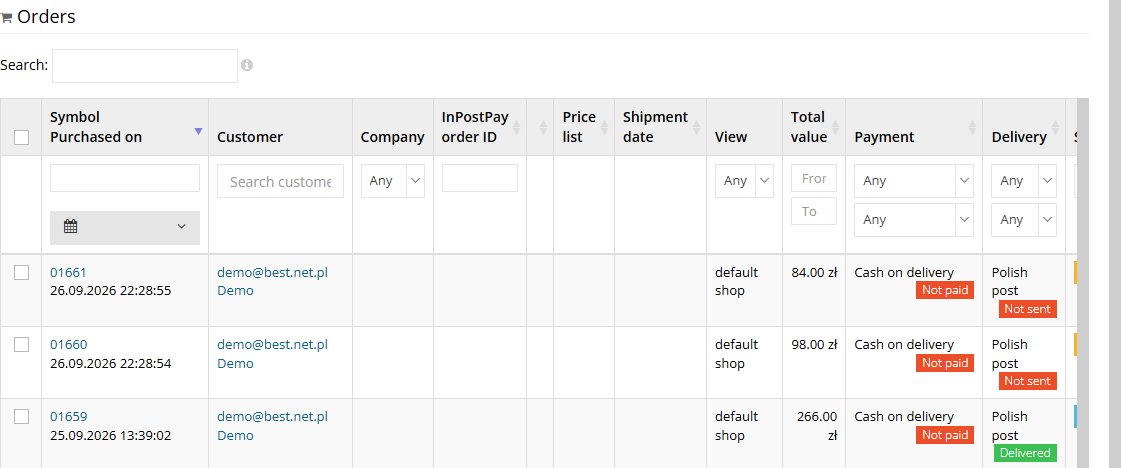
- The list is in the Orders menu. It shows the net and gross value total for orders matching the filters, and the order count: filtered and total.
- Standard columns: Symbol and Placed on, Customer, Value, Payment (method and payment status), Delivery (method and delivery status), Status.
- Additional columns: View (in stores with several views), Availability (whether items are in stock, when the warehouse is enabled), the customer's company (for company accounts), and any parameters added to the list (e.g. delivery deadline, ERP number).
- Filters: order symbol, placement date (including ranges: today, yesterday, 7 and 30 days, current and previous month), value from-to, payment method, delivery method, order status, payment status, delivery status, view, and parameters added to the list.
- By default, the list skips finished and canceled orders. Filters and table settings are remembered in the user's browser.
- The search box searches by symbol and by parameters chosen by the store (e.g. first name, last name, email, phone). With full-text search enabled, it searches any phrase in the order data.
- Clicking the symbol opens a quick order preview without leaving the list.
- Orders with a problem have their row highlighted on the list - see the "Orders with an integration error" section below.
¶ Bulk operations
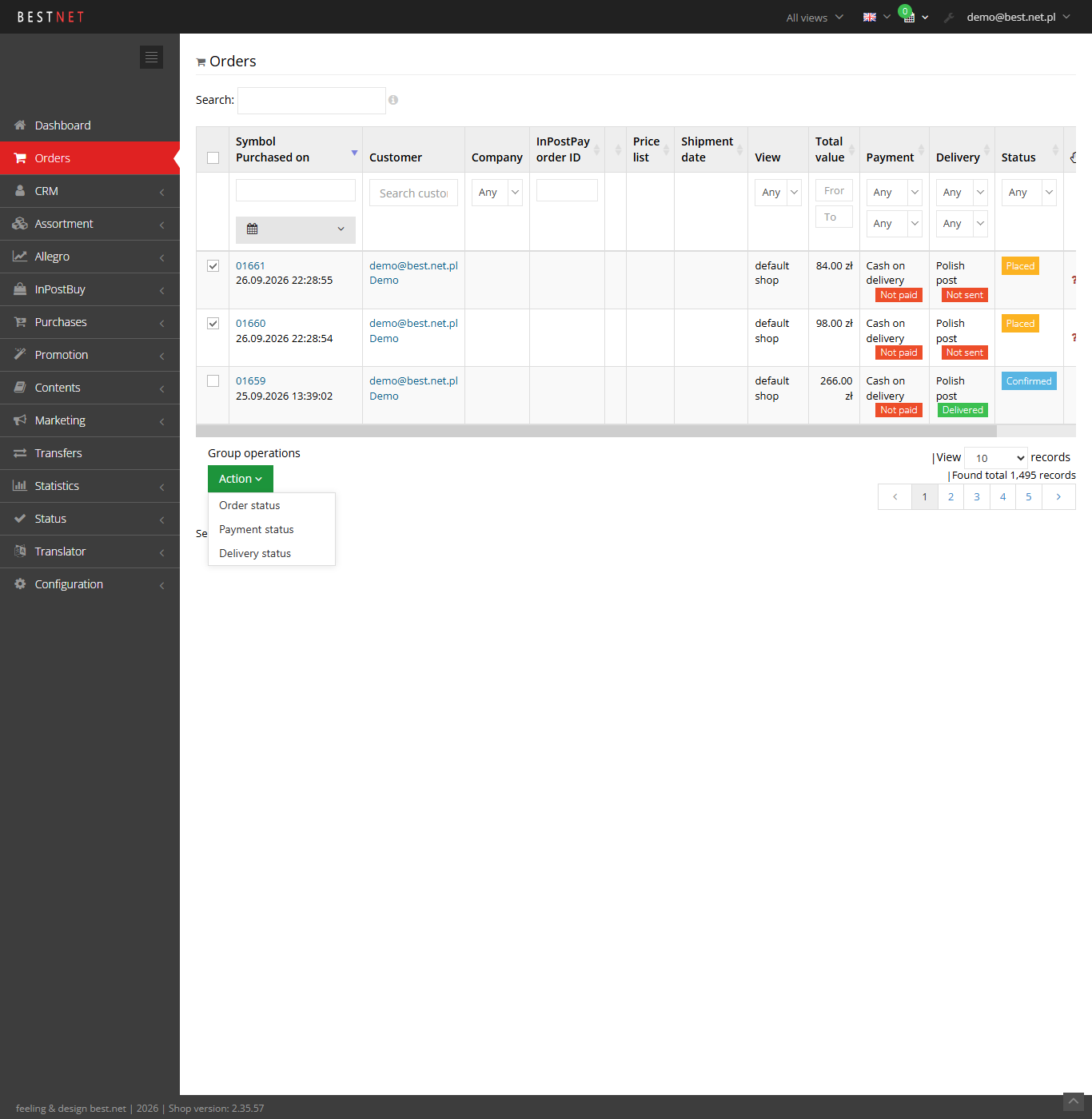
- On the selected orders, a single command can change the Order status, Payment status (unpaid, paid, canceled), Delivery status (not sent, prepared to send, sent, delivered), and the values of parameters added to bulk operations.
- With the DPD integration, the Generate DPD protocol operation is also available.
- The system checks each order individually. Orders for which the change isn't allowed are listed after the operation, while the rest change normally.
¶ Order preview
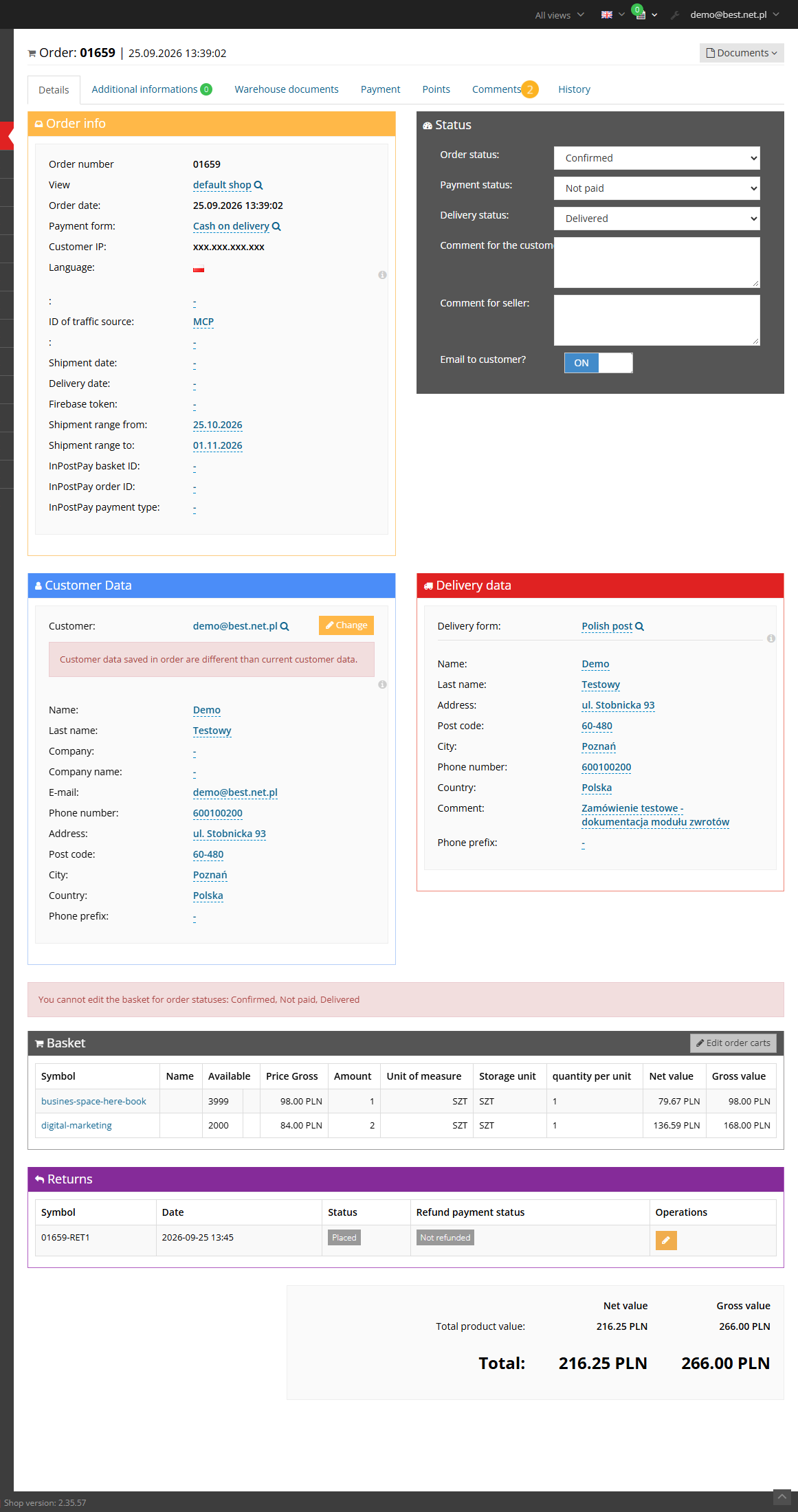
- General order information: number, date, view, language, payment method, item availability in the warehouse, and order parameters (editable in place).
- Customer data and Delivery data - with the option to reassign the order to another customer account and to pull data from the account.
- Changing the delivery or payment method shows the order value before and after the change and requires confirmation.
- Cart - line items with prices, discounts and a summary. With several carts in the order, each is shown separately (see Carts).
- Returns - returns filed against this order (when the returns module is enabled).
- Tabs: Details, Additional information (including integration data), Payments, Comments, History, and, depending on the modules enabled, also Warehouse documents, Shipment, Points and Allegro.
- History records every change: who (staff, customer, an integration, the AI assistant), when, and what changed - see Change history.
¶ Orders with an integration error
Hummerce flags orders for which an integration or an automatic process has reported an error. Staff see the problem on the order list, without digging through logs and without waiting for a customer to ask.
- On the list, the row of such an order has a pink background. Hovering shows a tooltip with the error text, exactly as the integration reported it.
- In the order details, a red exclamation mark appears next to the tabs, also with a tooltip showing the error text.
- The flag works automatically - there is nothing to enable or configure. If there are several errors, the tooltip shows all of them.
- What the store flags as an error:
- ERP - a failed transfer of the order to the ERP system (Microsoft Dynamics NAV (Navision)),
- Marketplace - a failed push of the order status or the waybill number (Allegro, InPost Buy),
- Courier - a waybill that didn't reach Baselinker (Baselinker),
- Order processing - the order is waiting for preprocessing, or preprocessing failed after all attempts.
- The store checks the flag live, based on the order's current state. Once the cause is fixed and the integration records a correct result (e.g. the next attempt to send to the ERP succeeds), the row returns to its normal look after the list is refreshed. Staff don't clear the flag manually.
- When you see an error, read the tooltip, fix the cause on the integration side (e.g. customer data, access to the external system) and wait for the integration's next attempt.
- The list has no separate "with error" column or filter - orders with an error are recognized by the row color.
¶ Statuses: order, payment, delivery
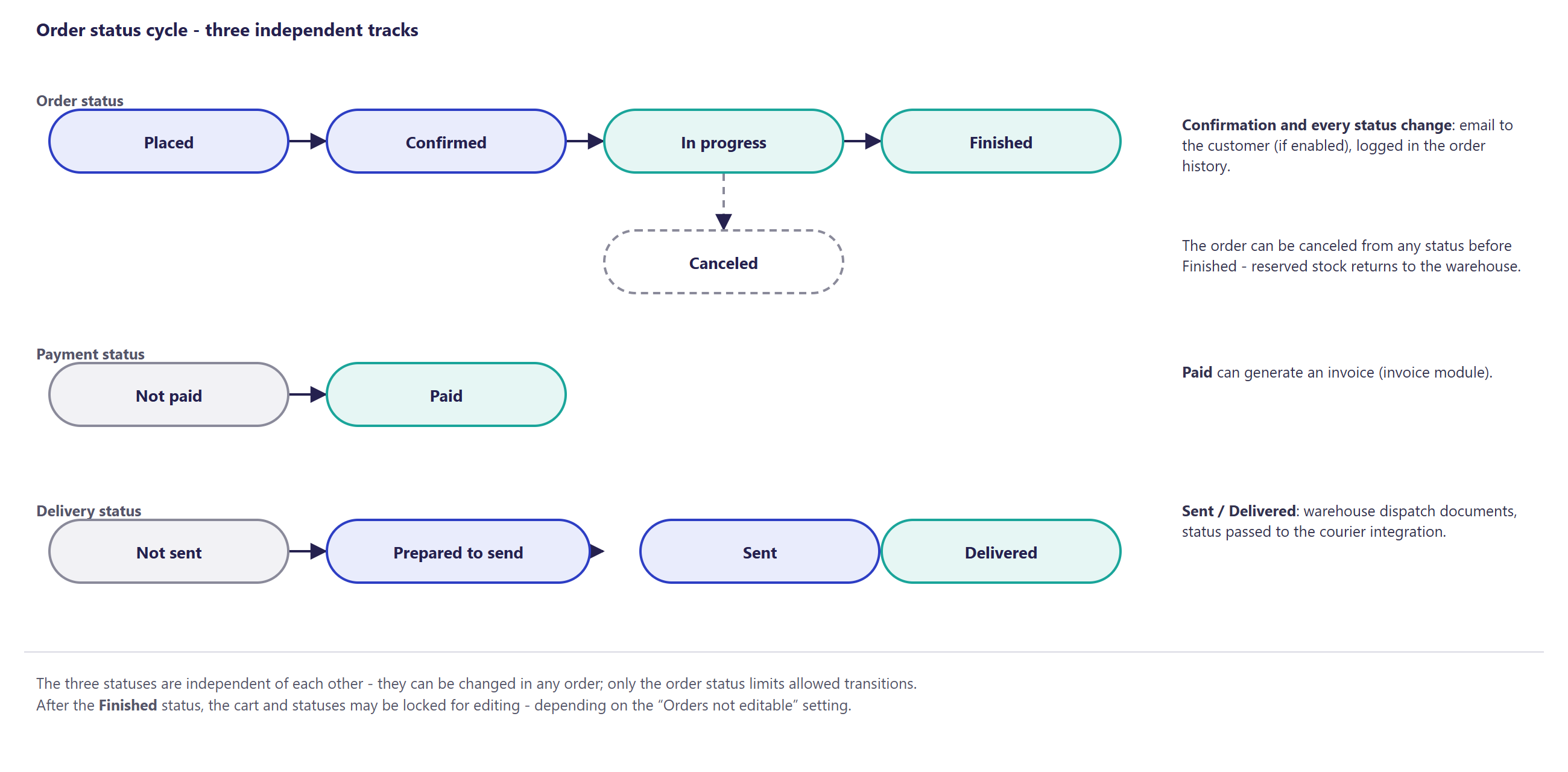
- An order has three independent statuses: Order status, Payment status and Delivery status.
- In the preview, you can only choose the statuses that are allowed as a transition from the current one. The same rule applies in bulk operations, in the REST API and in MCP.
- An order in preprocessing (e.g. waiting to be passed to the ERP) has status changes and editing locked until the preprocessing finishes.
- A status change can trigger the store's automations: an email to the customer and to the store, warehouse documents when the warehouse is enabled (Warehouse), generating an invoice, and passing the status to integrations (ERP, Allegro, couriers).
- If issuing from the warehouse isn't possible (e.g. the item is out of stock), the status change is rejected with a message.
¶ Comments and notes
- When changing a status, staff can add a Comment for customer (visible to the customer, emailed once Email to customer is checked) or a Comment for seller (an internal note, not visible to the customer). A comment can also be added without a status change.
- The Comments tab is the conversation with the customer on the order - messages visible to the customer and comments that aren't.
- The default checkbox state for emailing is set by Default customer notification. Comment confirmation for customer requires an extra confirmation before sending - it protects against accidentally sending an internal note to the customer.
¶ Editing the order and adding items manually
- Edit order carts lets you add an item by symbol, change the quantity, price, VAT rate and sales unit of a line, remove a line, apply a percentage discount to all items, change the delivery and payment cost, and add another cart.
- Before saving, the panel shows the new value summary. When saving, you can add a comment and notify the customer by email.
- An item added manually gets the base price from the item record, without the customer's price list or promotions - the price has to be corrected manually if needed.
- Editing is locked for chosen statuses through the Orders not editable setting - e.g. an order in progress or already sent can no longer have its contents changed.
- An order can also be split into two - see Order splitting.
¶ Documents and attachments
- The Documents menu on the order: Print order, PDF documents generated from store templates (Generate order printout, Return form, Complaint form, Exchange form - the same documents the customer can download from their account), a proforma and invoice from the ERP when the integration provides them, and any extra printouts defined by the store.
- Invoices generated in the store are described on the Invoices page.
- Order attachments are files delivered by integrations, e.g. PDF invoices from the ERP, documents from Allegro and InPost Buy. Staff and the customer the order belongs to have access to them (a guest too, via the order's link).
¶ An order placed by store staff
- The panel has no new-order form. An order on the customer's behalf is placed through Log in as a client on the customer's card (staff switch to the store as the customer and place the order the normal way; the history records that a staff member acted), through the AI assistant (a tool that creates an order from items, a customer or a guest, addresses, a delivery and a payment method), or through the REST API, e.g. from a sales rep's system or the ERP.
- An order created this way goes through the same process as an order from the store (numbering, processing, notifications).
¶ Version
- A core platform feature - available in all Hummerce versions.
- The most important changes in recent versions:
- 2.30 - unified order of statuses and colors on the dashboard and the order list,
- 2.33 - order attachments from integrations (e.g. PDF invoices from the ERP, marketplace documents),
- 2.34 - full-text search on the list, a new table layout, correct gross prices when adding items manually, MCP tools for orders,
- 2.35 - returns visible in the order details, a company filter and column (company accounts), creating and editing orders through the AI assistant.
- Latest changes in this area: version 2.35.55.
¶ Dependencies
- Staff permissions for orders (view, change) - Admin permissions. The same permissions apply in MCP.
- Active email templates for status changes, comments and order changes - Email templates and alerts.
- The Availability column, warehouse documents and reservations - the warehouse module (Warehouse).
- The company column and filter - company accounts (B2B sales overview).
- Attachments, proformas and invoices from the ERP - whichever integration delivers them (e.g. Comarch ERP XL, Business Central, Allegro, InPost Buy).
- Log in as a client - the staff login-as-customer option must be enabled.
- Error flags - working integrations (ERP, Allegro, InPost Buy, Baselinker, shipment tracking): the store only flags errors reported by an enabled integration.
¶ Implementation
- Works after an update - the list, filters, preview, status changes, bulk operations, comments, history and flagging of orders with an integration error are part of every store (the flag appears for the integrations you have enabled).
- Requires setup (optional): editing order carts, order PDF documents, showing integration attachments in the panel and in the customer's account, matching the list to the store (additional columns, filters, bulk operations - the store can do this itself), and Log in as a client.
- Minimum estimated time:
- enabling order editing - from 0.5 h,
- order PDF documents - from 4 h (depending on the number of documents and languages),
- showing attachments in the panel and customer account - from 4 h,
- matching the list through us instead of doing it yourself - from 1 h.
- The time for a specific implementation depends on its scope - we quote it individually.
- What the time depends on: the number and look of the PDF documents and the number of languages, the store template when showing attachments and documents in the customer account, the store's version (features from 2.34 and 2.35 need an update - quoted separately), the integrations delivering documents and attachments (quoted separately).
¶ Limitations
- The panel has no new-order form - an order on the customer's behalf is placed by logging into the customer's account, through the AI assistant, or through the API.
- Orders can't be deleted from the panel - the status is changed to canceled instead.
- An item added manually gets the base price from the item record - without the customer's price list or promotions.
- When editing, items can't be moved between the order's carts.
- Cart editing is unavailable until it's enabled in the store's configuration - it doesn't appear on its own after an update.
- The bulk operation only offers the basic payment and delivery statuses. The remaining statuses are changed in the order details, through the API or MCP. The bulk operation has no customer comment field.
- Changing the payment status in the panel doesn't perform an operation in the payment gateway (e.g. a refund) - gateway operations are only available in the Payments tab, if the gateway offers them.
- An order in preprocessing doesn't allow status changes or editing.
- The error flag has no settings, column or filter on the list - you can't show only orders with an error or turn off the flags of a chosen integration.
- The flag only shows errors that an integration reports. It doesn't replace monitoring of an external system (e.g. the ERP) and doesn't reveal an order that silently failed to arrive where the integration reported no error.
- The flag can't be cleared manually - it disappears after the integration's next attempt returns a correct result.
- Attachments from integrations aren't shown as a list on the order in the standard templates - displaying them requires adapting the template.
- PDF documents require the module to be enabled and templates to be prepared - they don't work right after an update.
- We do not verify the configuration for legal compliance - the content of comments, emails and documents (e.g. invoices, return forms) is set by the store.
¶ Future development
- A new-order form directly in the panel, with prices calculated as for the customer (price list, promotions).
- Recalculating prices and promotions after manually editing the cart.
- The full status list and a customer comment field in bulk operations.
- A list of attachments in the order details and in the customer account in the standard templates.
- Saved list views (filter sets) shared across the team.
- Exporting the order list with the current filters directly from the list.
¶ Frequently asked questions
Can several orders' status be changed at once in Hummerce?
Yes. Bulk operations let you change the order, payment or delivery status for the selected orders with a single command - the system skips the ones where the change isn't allowed.
Does the customer get an email notification when the order status changes?
Yes, if Email to customer is checked at the time of the status change - the default checkbox state is set in the store's configuration.
Can staff place an order on the customer's behalf from the panel?
Partly. The panel has no new-order form - an order on the customer's behalf is placed by logging into their account, through the AI assistant, or through the REST API.
Can you edit the line items of an already placed order?
Yes, once cart editing is enabled in the store's configuration, and only for the statuses the store allows. An item added manually gets the base price with no price list or promotions - the price has to be corrected if needed.
How can I check which orders failed to reach the ERP?
Look for rows with a pink background on the order list - hovering shows the error reported by the ERP integration. In the order details, a red exclamation mark signals the error. There is no separate "with error" filter.
Do I need to enable anything for orders with an error to be flagged?
No. Flagging works automatically for the integrations you have enabled: ERP, Allegro, InPost Buy, Baselinker and shipment tracking.
How long does setting up order PDF documents take?
From 4 h, depending on the number of documents and languages - the module doesn't work right after an update and requires preparing templates.
¶ Related
- Order statuses - the full list of order, payment and delivery statuses.
- Carts and Address book - the data the order relies on.
- B2B and B2C sales in one store - where order management fits for both company and individual sales.
- AI assistant - MCP server - order handling through the AI assistant.
Want to see how order management could work in your store? Contact the Hummerce team (in Polish).
¶ Configuration details
¶ Access in the admin panel
- Panel: the Orders menu - the list, details and history of an order. Panel dashboard - recent orders by status.
- Configuration in the panel: Settings:
- the Administration group: Default statuses, Default payment statuses, Default delivery statuses (which orders the list shows by default), Quickview on the order list, Comment confirmation for customer,
- the E-mails group: Default customer notification,
- the Finance group: Gross prices in admin,
- the Orders group: Orders not editable - the statuses that lock cart editing.
- Order: the "Order editable" parameter - set automatically according to the statuses that lock editing.
- Customer account: order history with statuses, comments visible to the customer, PDF documents to download.
¶ REST API and MCP
- REST API: an order list with paging, filters and sorting, fetching an order, creating an order (goes through normal processing), updating an order, order returns; the data scope is set by the order parameter location in the API (see REST API).
- MCP: tools for the recent order list, an order's status, properties and line items, changing status, adding a note, and creating and editing an order - with the same order permissions as in the panel (see AI assistant - MCP server).
¶ Store messages
Email templates are changed in Email templates and alerts, and the status names visible to the customer - in the message editor.
| Alert | When |
|---|---|
| order status change | a status change with the email to customer checkbox checked |
| comment for customer | a comment for the customer without a status change |
| order change | an order change, e.g. editing the cart |
¶ Parameters
Parameters and locations for the order list, search and preview are changed in Properties and locations - the store can add its own columns, filters, search fields and bulk operations on its own, with no development work.