¶ InPost Pay - fast checkout through the InPost app
InPost Pay in Hummerce is a fast checkout through the InPost app (a Polish parcel-locker and courier network): the customer clicks the InPost Pay button in the cart or on a product card, confirms the purchase in the app on their phone - without filling in an order form - and the order, with its data, delivery and payment, arrives in the store automatically. The integration runs on the current version of the InPost button (Widget 2.0) and shortens the checkout path, especially on a phone.
As of Hummerce 2.34 (last changes to the module: 2.35.61), updated 2026-10-07.
¶ Benefits and use cases
- Checkout in a few seconds, with no form - higher conversion, especially on a phone and for impulse purchases.
- Purchase straight from the product card - the customer doesn't have to go through the cart.
- Address data and phone number from the InPost app - fewer errors in addresses and parcel locker numbers.
- Discounts, promotions and delivery costs calculated by the store - the same rules as a regular order, with no separate price list for InPost.
- Order status and shipment number visible to the customer in the InPost app - fewer "where's my package" questions.
- InPost Pay orders are handled on the same list as the rest - with the same statuses and warehouse reservations.
- The button can be disabled for products InPost won't deliver - so the customer doesn't hit a dead end.
¶ How it works
- The InPost Pay button is shown in two places:
- in the cart - the customer transfers the whole cart to the InPost app,
- on the product card - clicking it adds the product to the cart and immediately transfers the cart to the app. For a product with variants, the customer must choose a variant first.
- The button can be hidden for selected products (e.g. oversized items InPost doesn't carry). In the cart, the button only appears when every product meets the conditions.
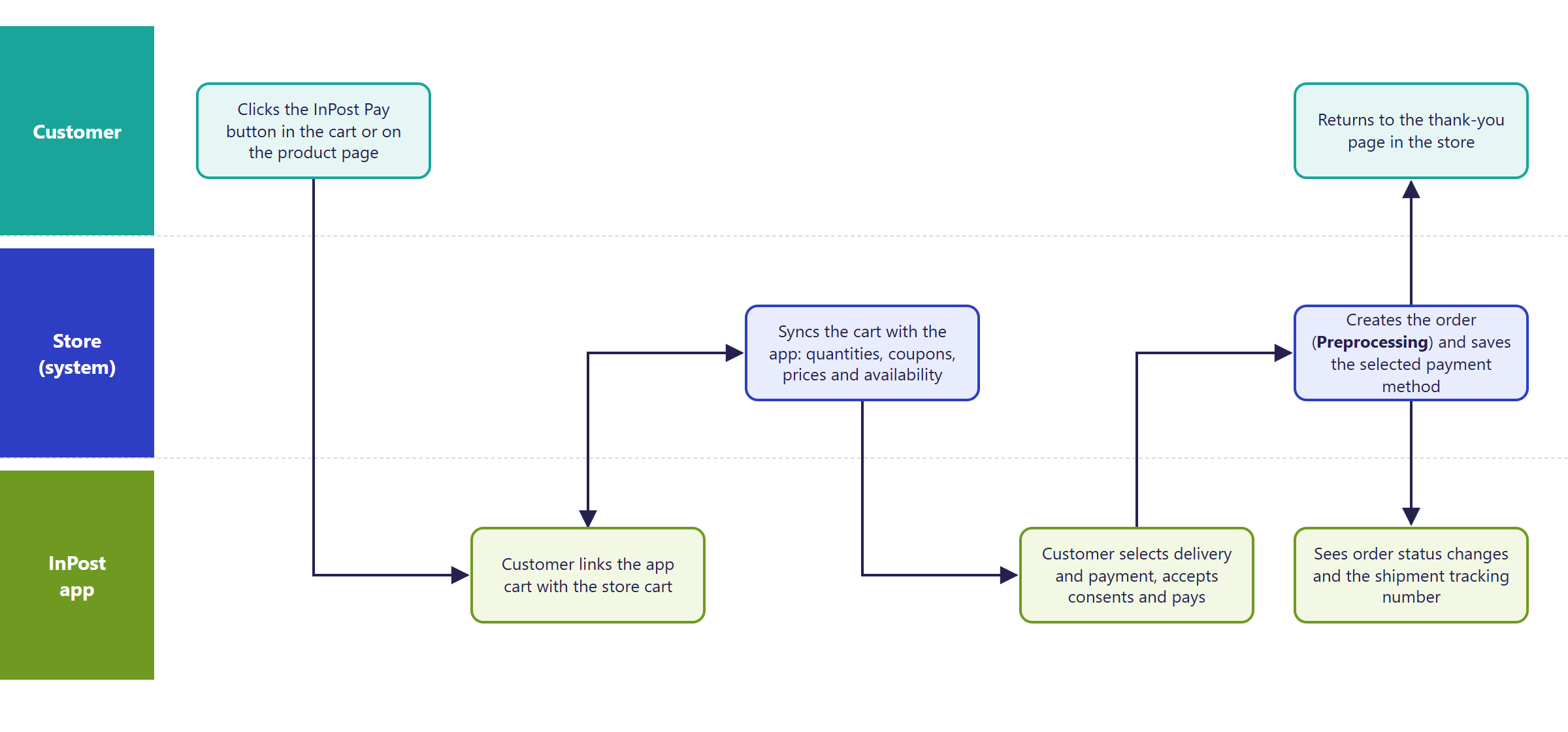
- After clicking, the customer confirms linking the cart in the InPost app. From that point, the cart in the store and in the app stay in sync:
- a change to the cart in the store (adding a product, changing quantity) updates the cart in the app,
- a quantity change in the app updates the cart in the store,
- a discount code entered in the app is checked and applied under the store's coupon rules,
- deleting the cart in the app disconnects it from the store.
- The store calculates prices, promotions and delivery costs - under the same rules as a regular order (delivery price lists, free-delivery thresholds). The quantity in the app is capped at the quantity available in the store.
- The following are sent to the app: name, description, photo, EAN code, price and quantity of the products, plus the store's consents (e.g. accepting the terms of service).
- The customer chooses delivery and payment in the app, accepts the consents and places the order. The store creates the order right away, and the customer's browser moves to the thank-you page.
- Delivery - two options:
- InPost parcel locker - offered only when every product in the cart belongs to the delivery group set in the configuration,
- InPost courier - offered when the store has calculated a cost for this delivery for the cart.
- The estimated delivery date in the app is the order date plus the number of days from the Delivery delay setting (3 by default).
- Payment happens in the InPost app. Available methods depend on the store's agreement with InPost - e.g. BLIK (a popular Polish mobile payment method), card, Google Pay, Apple Pay, fast bank transfer, deferred payment, cash on delivery. The store doesn't restrict this list.
¶ How the order reaches the store
- The order is created with status Preprocessing, payment Not paid, delivery Not sent - handled from there like any other order (Order, Payment and Delivery Statuses).
- The order has the InPost Pay delivery and payment set in the module's configuration, the customer's data and address from the app, and, for parcel-locker delivery, the chosen locker.
- If a store account exists with the same email address, the order is assigned to that account. Otherwise, an order without an account is created.
- Products are reserved in the warehouse the same way as with a regular order.
- After the order is placed, the customer's cart in the store and any entered coupons are cleared.
- The order records the payment type chosen in the app (e.g. BLIK, card), the customer's comment and the accepted consents.
- Invoice data entered in the app is saved on the order (from version 2.35.61). For a company purchase the order is marked as a company order and carries the company name and NIP (the Polish PL prefix is dropped, a foreign one stays with the number). For a private purchase the order is marked as private, without NIP. The first name, last name and invoice address replace the main order data - the invoice address only when it is complete (street, city, postal code); the delivery address stays unchanged.
- The thank-you page passes purchase, payment and delivery events to Google Analytics.
¶ Purchase flow
¶ Mapping order and payment statuses
Order and payment statuses are synchronized in both directions.
From the InPost app to the store - payment
| Payment state in InPost Pay | Payment status in the store |
|---|---|
| unpaid - order created, customer hasn't paid yet | Not paid |
| started - customer began paying in the app | Not paid |
| in progress - payment is being processed | Pending |
| paid - payment completed successfully | Paid |
| rejected by the payment system | Canceled |
| canceled | Canceled |
| payment error | Error |
| cash on delivery - customer will pay on delivery | Not paid |
From the InPost app to the store - order
| Order state in InPost Pay | Order status in the store |
|---|---|
| rejected - customer canceled in the app before paying | Canceled |
| completed | Finished |
From the store to the InPost app
- Every order status change in the store is sent to the app - the customer sees the status name there just as it appears in the store.
- Along with the status change, the store passes the order's shipment number, if it has already been assigned.
- Canceled in the store marks the order in the app as rejected - it can no longer be paid.
- Finished in the store marks the order in the app as completed only when it wasn't paid through InPost Pay (e.g. cash on delivery). For orders paid in the app, only the status name is passed on.
¶ Version
- From version 2.34 - the current integration (Widget 2.0) in the cart and on the product card. The earlier integration (from version 2.32) relied on a discontinued InPost button and doesn't work.
- From version 2.35.61 - invoice data (company, NIP) from the InPost app is saved on the order.
- Last changes to the module: version 2.35.61.
¶ Dependencies
- A store agreement with InPost for the InPost Pay service - the store arranges this itself. From the InPost Pay panel, the store gets access data for the test and production environments: Client ID, Client secret, POS ID and Merchant Client ID (a different value from Client ID).
- Access data is passed through a secure channel, not in the body of a support ticket.
- The store's integration address, reported to InPost at launch - InPost connects to this address for the cart and orders.
- Deliveries in the store: a separate delivery for the parcel locker and a separate one for the InPost courier, with costs. Using the same delivery for both makes it impossible to distinguish parcel locker from courier in the order.
- A delivery group for products that fit in a parcel locker - without it, the locker option isn't offered in the app.
- The InPost Pay payment on the store's payment list (Payments).
- The store's terms of service and the consent text shown in the app - prepared by the store.
- Discount codes in the app - work with the store's coupons (Coupons).
- Product photos and EAN codes - sent to the app if they're filled in.
- Reporting the purchase to Google Analytics - requires a configured GA4.
- Store version 2.34 or newer.
¶ Implementation
- Requires implementation - the module doesn't turn itself on after an update. Scope:
- enabling the module in the store's configuration and entering InPost access data (test and production),
- setting up parcel-locker and courier deliveries, the InPost Pay payment, and the delivery group for the parcel locker,
- configuring the consents shown in the app (terms of service, optionally other consents),
- any conditions for hiding the button for selected products,
- embedding the button in the cart and on the product card, and adapting its position to the store's look (phone and desktop),
- reporting the integration address to InPost, testing in InPost's test environment (linking the cart, quantity changes, coupon, parcel locker and courier, payment, cancellation, shipment number),
- switching to the production environment, enabling verification of InPost request signatures, and a control order.
- Minimum estimated time:
- BS5 template - from 8 h,
- BS4 template - from 12 h.
- The time for a specific implementation depends on its scope - we quote it individually.
- What the time depends on:
- the store template - both templates have ready-made button elements, but they need to be embedded in the cart and on the product card; BS4 needs more adjustments,
- how much the cart and product card are customized (variants, sets, configurators),
- whether the store provides a complete set of test and production data right away - missing test data lengthens testing,
- InPost's response and approval time,
- the store version - a store on a version older than 2.34 needs an update first (quoted separately),
- extra requirements, e.g. custom delivery mapping or invoice data (quoted separately).
¶ Limitations
- Only two deliveries: InPost parcel locker and InPost courier. Delivery names in the app are fixed ("Paczkomat InPost", "Kurier InPost"), with no extra delivery options.
- The parcel locker is only offered for a cart made up entirely of products from one designated delivery group.
- The estimated delivery date is a fixed number of days from the order - it doesn't account for product availability, holidays or shipping hours.
- PLN only. The order is saved in the store's main currency, in the default view and the store's default language.
- The button and app messages are in Polish - with no language switching to match the store's language version.
- No customer account creation - the order is only assigned to an account when one with that email address already exists.
- Related products suggested in the InPost app aren't supported.
- Linking the cart to the app lasts as long as the customer's session in the store. Once the session expires (e.g. a long break), the cart has to be linked again.
- On the product card, the purchase concerns the product added to the current cart - the whole cart goes to the app, not just the product being viewed.
- The quantity in the app is capped at the quantity available in the store - the customer can't order more than is in stock.
- A refund for an order paid in the app is handled on InPost's side - the store doesn't issue it.
- Consents shown in the app are set during implementation - changing the terms of service or consent text requires a change to the module's configuration.
- Payment methods in the app depend on the agreement with InPost - the store can't disable individual methods (e.g. cash on delivery) from the panel.
- We do not verify the configuration for legal compliance - the terms of service, consent text and payment information are set by the store.
¶ Future development
- Support for related products suggested in the InPost app.
- Estimated delivery date based on product availability and a shipping calendar.
- Button language versions matching the store's language.
- Managing consents in the panel, without changing the module's configuration.
- Creating a customer account on the first InPost Pay order.
- Extra delivery options (e.g. weekend parcel locker, express delivery).
¶ Frequently asked questions
Does the customer need a store account to buy through InPost Pay?
No. The order is created without an account, unless one with the same email address already exists in the store - in that case the order is assigned to it.
Does InPost Pay support currencies other than the Polish zloty?
No. An InPost Pay order is always saved in the store's main currency (PLN), in the default view and default language.
How long does implementing InPost Pay take?
BS5 template - from 8 h, BS4 template - from 12 h. Time grows with how much the cart and product card are customized and with missing test data.
Can I disable the InPost Pay button for selected products?
Yes. Item criteria in the module's configuration decide which products show the button - useful e.g. for oversized items InPost doesn't carry.
Does the customer choose delivery and payment in the store or in the InPost app?
In the InPost app - that's where the customer picks a parcel locker or courier and a payment method; the available methods depend on the store's agreement with InPost.
Does the store handle refunds for InPost Pay orders?
No. Refunds for orders paid in the app are handled on InPost's side.
¶ Related
- Payments - overview
- Delivery methods - overview - parcel-locker and InPost courier delivery outside InPost Pay too.
- PayPal - another online payment available in the Hummerce standard.
- On hummerce.com: B2C Platform (in Polish), InPost Pay integration (in Polish), InPost integration (in Polish).
Want to see how InPost Pay could work in your store? Contact the Hummerce team (in Polish).
¶ Configuration details
¶ Access in the admin panel
- Panel configuration: Configuration -> Settings, InPostPay group (besides the environment switch - technical settings):
- Environment type - TEST or PROD; TEST by default, must be switched before going live,
- Client ID TEST, Client secret TEST, POS ID TEST, Merchant Client ID TEST, API URL TEST, Auth URL TEST - test environment data,
- Client ID PROD, Client secret PROD, POS ID PROD, Merchant Client ID PROD, API URL PROD, Auth URL PROD - production environment data,
- Default payment - the payment saved on orders (
inPostPayby default), - Default courier delivery, Default parcel-locker delivery - the deliveries saved on orders,
- Delivery group for parcel-locker delivery - only a cart made up entirely of products from this group can be sent to a parcel locker,
- Delivery delay - the number of days added to the estimated delivery date (3 by default),
- Item criteria - the condition for which products get the InPost Pay button (empty - all),
- Enable signature validation - verifying that requests come from InPost - turned on when going live,
- Enable detailed logging - a full log of the communication with InPost, for troubleshooting.
- Consents shown in the app (content, link, version, whether required) - set during implementation in the module's configuration, not in the panel.
- Order list: InPost Pay orders on the regular order list, with an "InPostPay order ID" column.
- Order: the parameters "InPostPay order ID", "InPostPay basket ID", "InPostPay payment type", "InPostPay consents", and the customer phone and delivery phone "country code".
¶ REST API and MCP
- The module has no operations of its own in the REST API or MCP - InPost Pay orders are available through the standard order operations (REST API).
- The module's settings can be read and changed with the
ec2_config_search,ec2_config_get,ec2_config_settools (technical settings require extra confirmation).
¶ Store messages
Messages next to the button are changed in the message editor. Default values are in Polish and English.
¶ InPost Pay button in the cart and on the product card
| Key | Default value |
|---|---|
msg.inPostPay.basketConnected |
Basket connected |
msg.inPostPay.basketFinalized |
The order was processed successfully in the inPostPay application |
msg.inPostPay.variantRequired |
Please select a product variant before adding to cart |
¶ Parameters
Order parameters are changed in properties and locations.
| Symbol | Object | Label |
|---|---|---|
_inPostPayOrderUUID |
order | InPostPay order ID |
_inPostPayBasketUUID |
order, order cart | InPostPay basket ID |
_inPostPayOrderPaymentType |
order | InPostPay payment type |
_inPostPayOrderConsents |
order | InPostPay consents |
_phone_country_prefix |
order | Country code (customer phone) |
_delivery_phone_country_prefix |
order | Country code (delivery phone) |
The module also uses standard parameters: the product's delivery group (_deliveryGroup), EAN (_ean), product photos, parcel locker (_inPostBoxMachineName), comment (_comment), delivery email (_delivery_email) and shipment number (_waybill).